
Organize footage scattered across drives and NAS storage.
Internal SSDs, external drives, NAS shares — one library. ClipCatalog tracks each drive as a separate volume by its stable ID, not by its drive letter, so the same SSD keeps its identity even when Windows assigns it a new letter.
Search clips on a drive while the drive is in a drawer. Catalog data lives on your PC, not on the drive itself. Reconnect only when you actually need to play or export the file.
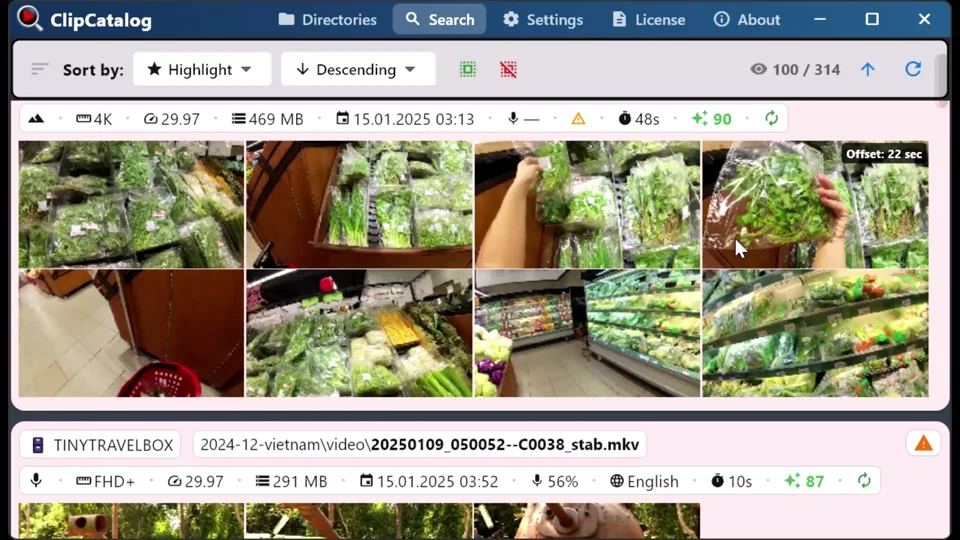
Per-volume, not per-drive-letter
ClipCatalog identifies each volume by stable ID. The same SSD keeps its identity if Windows hands it a new drive letter next time. Two clips with the same filename on different drives never collide.
Catalog survives disconnects, renames, and reshuffles
Tags, transcripts, and face data live in the local catalog — not on the source drive. Disconnect a USB drive and it still appears in search results. Rename a folder and ClipCatalog auto-detects the new path and offers to relink.
NAS is a first-class storage layer
UNC paths (\\server\share) and mapped drive letters both work. NAS volumes get a dedicated icon, NAS-specific reconnection messaging, and an independent poll schedule so a slow or offline NAS never blocks your local drives.
The "which drive was that on?" problem
Footage drifts. A wedding ended up on one SSD, the honeymoon on another, phone backups on a third, and the NAS got the overflow that didn't fit anywhere else. Without one catalog spanning all of them, you're plugging drives in one at a time and hoping you remember which clip lives where.
Without a unified catalog
- Footage scattered across SSDs, NAS, and old backup drives with no single place to look
- Plug in three drives just to find one shot — and pull them again afterward
- Cloud DAMs want you to upload terabytes you'd rather keep at home
- Renaming or moving a folder breaks every reference your old catalog had
With ClipCatalog
- One library indexes every drive and NAS share you've added — search across all of them at once
- Search and shortlist clips with drives unplugged; reconnect only to grab the file
- Move or rename a folder and ClipCatalog auto-detects the new location and relinks
- Filter results by volume when you need clips from a specific drive
How catalog-across-drives works
Three things have to be true for a multi-drive library to actually feel like one library: every drive shows up as a tracked source, the catalog survives drives being disconnected, and moved folders find their way home. ClipCatalog handles all three locally.
External drives →Mixed-brand 360° footage on those same drives is no exception — ClipCatalog indexes native Insta360, GoPro, and DJI files, plus equirectangular exports, right alongside everything else. See how 360° search works →
Add every drive as a source
Drag a folder from an internal drive, an external SSD, or a UNC path (\\server\share) into ClipCatalog. Each volume is tracked separately — local, USB, and network drives all get distinct icons.
ClipCatalog indexes locally
Tags, transcripts, faces, and thumbnails are computed on your PC and stored in a local encrypted database. The drive itself stays untouched — your folders, your filenames.
Search across all of them
Search the whole catalog at once, filter by volume, or scope a single drive. Volume-aware filtering lets you say only show me clips on the NAS or everything except the unplugged backup drive.
A day in the life of a 40-TB archive
One homelab owner. 40 TB across a Synology DS920+ (4× 16 TB Toshiba MG08ACA, SHR-2, 32 TB usable), a 4 TB Samsung T7 working SSD, and a 2 TB cold-storage HDD in a fire safe. About 6,400 video clips on the NAS. Catalog: an encrypted SQLite database with its write-ahead-log sidecars, a folder of thumbnails and face crops, and the local semantic index — all under %LOCALAPPDATA%\ClipCatalog\.
\\synology\photos\2026\cousins-wedding to \\synology\photos\2026\Cousin Sarah's Wedding. ClipCatalog catches the rename on the next NAS poll (~10 s). One click on Relink: 240 clips reattach to the new path, tags and transcripts intact, no re-indexing.None of this needed cloud accounts, per-clip fees, or moving the files out of their original folders. If that folder is already in the homelab's Sunday cron, none of those snapshots open without the database key — which was never in the folder you copied. Export it now: Settings → Catalog backup & recovery → Export database key…, and keep it outside the catalog folder. ClipCatalog makes and verifies the catalog's own copies, and because those live on this PC the Sunday cron still earns its keep: when it runs, close ClipCatalog first and include the database's -wal and -shm sidecars if they're there.
Cloud DAM vs local catalog — at 10 TB
Pricing and time-to-upload at 10 TB are the two numbers that decide whether a cloud DAM is even a contender. Here they are side by side.
| Cloud DAM (Frame.io / Axle AI / Iconik tier) | ClipCatalog | |
|---|---|---|
| Annual cost at 10 TB, one user | Recurring subscription, scales with TB and seats | $99 one-time |
| Upload time at 50 Mbps home upstream | ~18 days continuous to push 10 TB | Zero — files never leave your network |
| On cancellation | 30-day grace, then your bytes are deleted from their servers (you must download first) | Nothing changes — catalog and search keep working forever |
| Master copy lives on | Their servers | Your drives, in your folders, on your network |
Cloud DAM pricing varies considerably by tier, seat count, storage volume, and signup year — Frame.io, Axle AI, and Iconik all run on recurring billing that scales with library size and user count. ClipCatalog adds no per-clip or per-TB fees on top of the one-time license.
Storage operations that become easy
Once your drives and NAS shares are indexed, you stop thinking about which device holds what. Six storage-layer moves that turn into single-click operations — separate from the search modes that sit on top.
\\synology\media\family. ClipCatalog tracks it as a separate volume with a NAS icon. No mapped drive letter needed.Why local-first matters when your archive spans drives
A multi-drive video archive is often a personal one — family video, project footage that's under NDA, raw interviews. Cloud DAMs want you to upload all of it. A local catalog lets you keep the files exactly where they are, on the disks you bought, in the folders you organized.
ClipCatalog runs every AI stage on your PC. The catalog is an encrypted SQLite database, a folder of thumbnails and face crops, and a local semantic index on your machine; the source videos never leave the drive they're on. The NAS stays a NAS — not a sync target for someone else's cloud.
If you compare local-first video tools side-by-side, see the privacy-first video management roundup for how ClipCatalog stacks up on multi-drive cataloging and NAS support.
Cataloging footage across drives and NAS — FAQ
Does ClipCatalog work with my NAS?
If Windows can mount it — as a mapped drive letter or via a UNC path like \\server\share — ClipCatalog can catalog it. SMB/CIFS shares from Synology, TrueNAS, Unraid, QNAP, Windows Server, and similar all work. Other protocols work if a third-party client exposes them as drive letters.
Does it copy my videos somewhere?
No. Source video files stay exactly where they are. ClipCatalog only writes its own thumbnails and face crops, a local semantic index, and an encrypted SQLite database on your PC — your folder structure is never touched.
How does it handle slow or unreliable NAS connections?
NAS detection runs on its own poll schedule, independent of local-drive detection, so a slow or offline NAS never holds up the rest of the app. Reconnection is automatic when the share comes back; warnings use NAS-specific language so you know what's happening.
Will it index a whole 10 TB NAS share?
Yes — the app is designed for large libraries. The first scan is the slow part because of thumbnail and AI work; after that, incremental syncs are cheap. You can scope which subfolders get processed, or skip face/transcript stages per directory.
Combine drive cataloging with everything else
The multi-drive layer is the foundation. The search modes built on top of it are what makes finding a specific shot fast — even when the shot lives on a disk in a drawer.
External drives
Full feature reference: volume IDs, UNC paths, mapped drives, supported protocols, relocation handling, and the disconnect-aware search semantics — the deeper how-it-works page.
Local-first privacy
Every AI stage runs on your PC. The catalog is an encrypted local database; source videos never leave the drive they're on. No cloud uploads, no per-clip fees.
Video search
Search the whole multi-drive catalog at once — by tag, by description, by spoken word, by face. Filter by drive when you need to scope to a specific volume.
AI tags
AI tagging detects objects, scenes, and actions across every drive. The tag vocabulary becomes a browsable map of what's in your library, regardless of which disk a clip lives on.
Relevant comparisons
If you are evaluating this workflow against other tools, start with these side-by-side pages.
Related problem-centered guides
Search a TB-scale video library
Once the catalog spans multiple TB, the question shifts from "where is it?" to "how do I narrow this down?" The companion guide focuses on layered filters, saved presets, and result ranking at scale.
Find B-roll by what's on screen
Once your catalog spans every drive, AI tags let you pull matching B-roll across the whole library — not just one clip at a time.
Search videos by spoken words
Find any quote or keyword spoken on camera with offline Whisper transcription — the companion problem to organizing the storage layer.
Find a person in your video library
Face search across folders, drives, and years of footage — most useful once your multi-drive catalog actually spans every drive.
Pick this page if
- Your catalog needs to survive the day a drive letter changes (volume IDs, not paths)
- Compliance forbids moving source files out of their original folders
- You tape-rotate cold-storage drives and need to know what's on the shelf without plugging anything in
- Cloud DAM subscriptions outgrow a one-time local license within the first year or two at typical library sizes
- You want catalog backups that run and verify themselves, not a backup job you have to assemble
Try it on your drives
Point ClipCatalog at one folder per source — internal, external, or NAS — and watch them merge into a single searchable catalog. The first scan does the heavy lifting; everything after is incremental.
Try ClipCatalog free — up to 500 videos
No account required. Your footage stays on your computer.
License terms and installer availability