
Search video by description with natural-language search
ClipCatalog gives your local video library a dedicated natural-language video search mode. Describe the shot you want, choose Relaxed, Balanced, or Strict matching, then sort by semantic relevance to surface the best clips first.
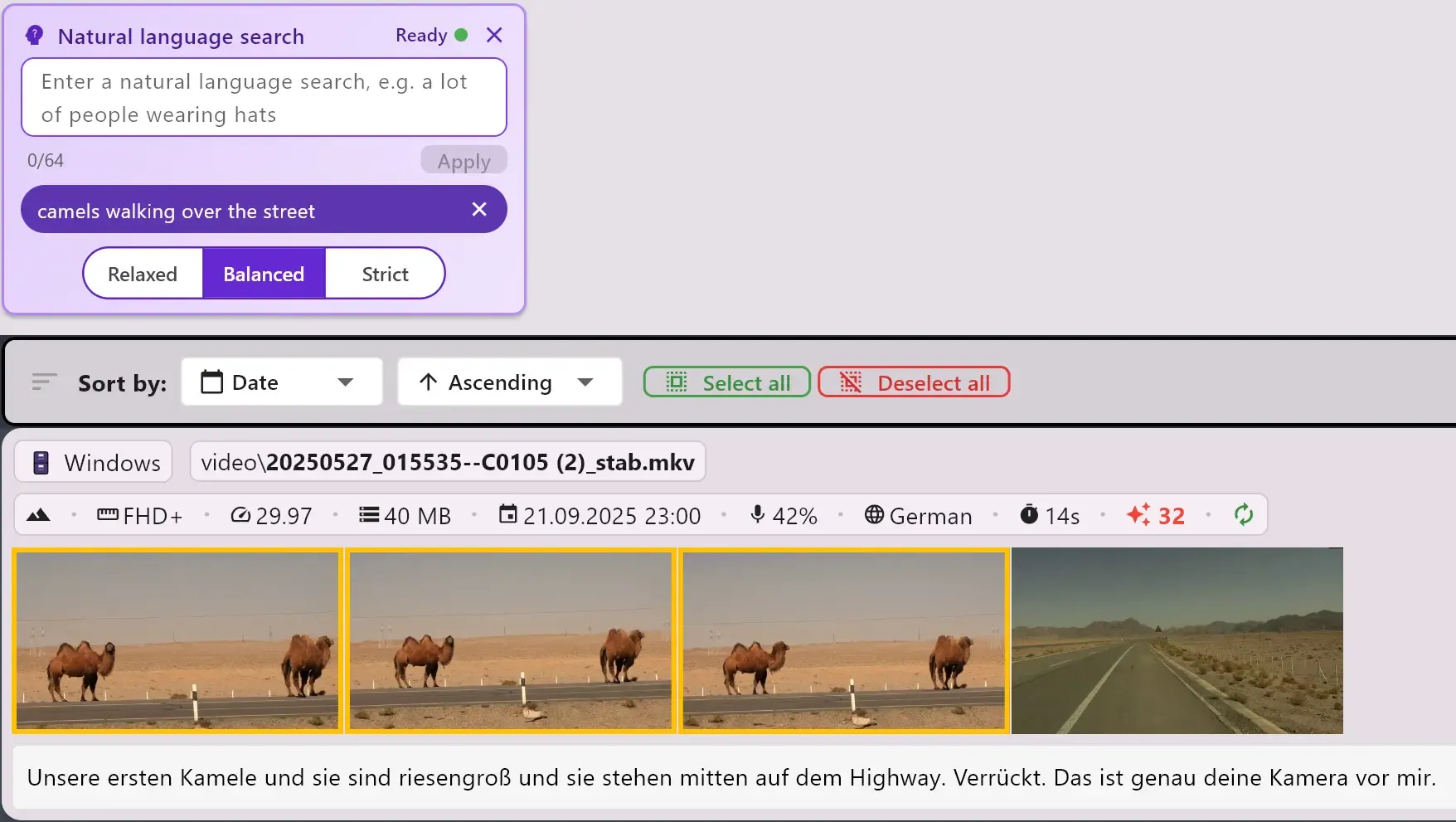
Search local footage by description, adjust semantic strictness, and rank results by relevance.
Users usually do not remember exact tags or filenames. They remember the shot: a lot of people wearing hats, busy night street with cars, or scenic drone shot over water. This page should win on that use case.
AI tag search is great when you know the exact concept you want. Natural-language search is the faster starting point when you only remember the meaning of the scene and want ClipCatalog to retrieve the closest matches.
This is not vague AI marketing copy. ClipCatalog exposes actual controls users can use: semantic strictness, relevance sorting, and combination with the rest of the local search workflow. Learn about local-first privacy →
Best for
- Users specifically looking for natural-language or semantic video search software for local footage.
- Editors and researchers who remember scenes conceptually instead of by filename or exact detected label.
- Windows footage libraries that need description-based search plus transcript, directory, and technical filters in one app.
Test it on a folder you already know
Choose a real project folder, finish semantic processing, and run 3 to 5 description-based searches for shots you remember but cannot retrieve quickly with filenames or exact tags alone.
What users actually get
The feature ships as a dedicated search mode inside ClipCatalog's existing search screen. You enter a plain-language description, tune match strictness, and review semantically ranked results without leaving the local library workflow.
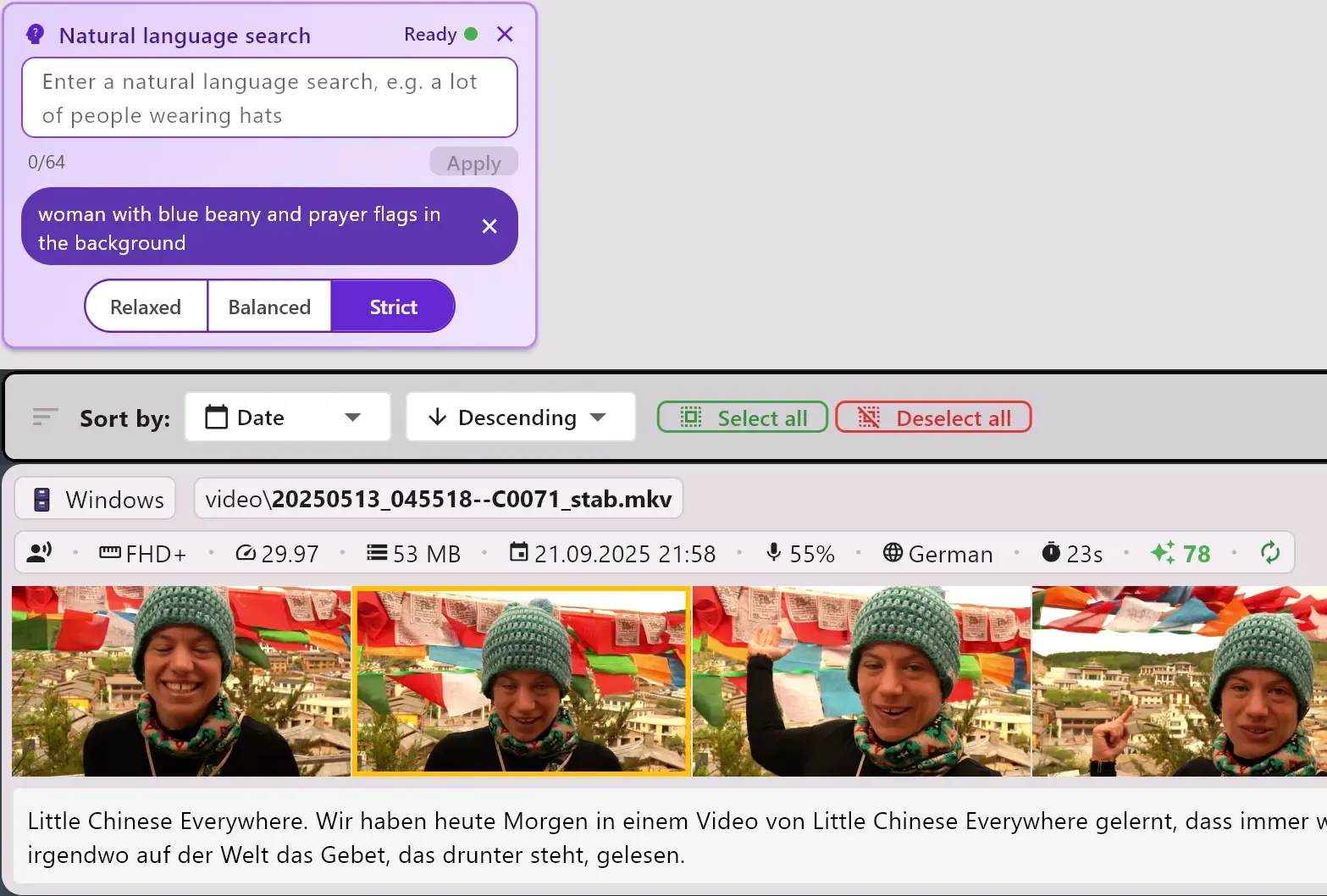
A dedicated semantic search filter
Natural-language search is not hidden behind a generic prompt box. It appears as its own filter in the search UI, so users can use description-based search alongside metadata, directory, transcript, and technical filters in one workflow.
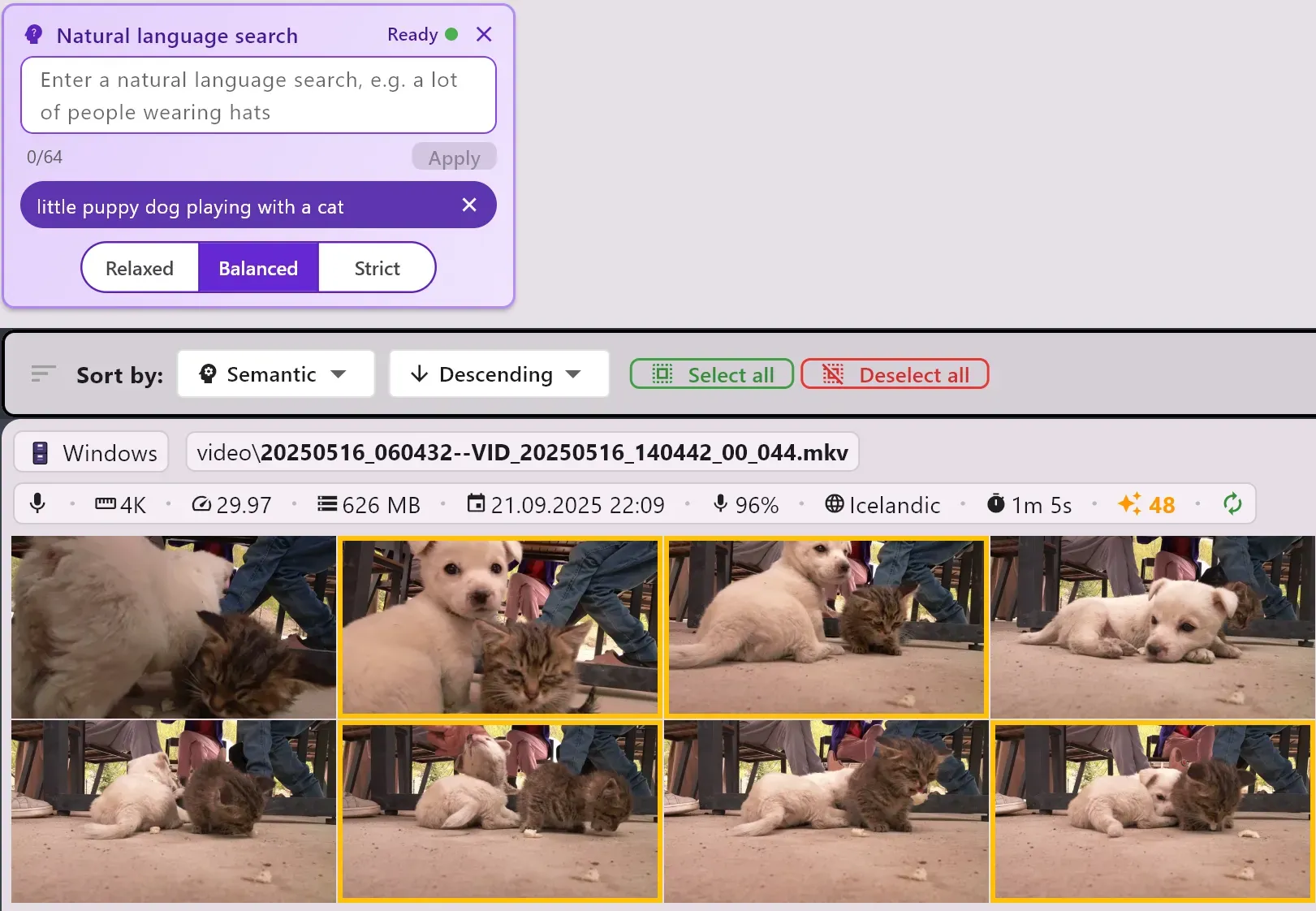
Semantic relevance sorting built into results
Once the filter is active, ClipCatalog can sort by semantic relevance instead of only by date or duration. That matters when you want the strongest conceptual matches first before refining to the final selects.
Why users choose this instead of other search modes
Natural-language search is the right ClipCatalog feature when you want to search video by description. It complements exact concept search, transcript search, and library filters across local folders and external drives instead of replacing them.
Enter a scene description such as a lot of people wearing hats or person speaking to camera in an office. That is the job this page should own: description-first retrieval for local footage.
Relaxed is better for discovery, Balanced is the default middle ground, and Strict narrows the set around the strongest semantic matches. That gives users a concrete control instead of a black-box AI promise.
Natural-language search gets you close quickly. Then you can narrow with transcript words, folders, dates, duration, resolution, and the rest of ClipCatalog's local search filters.
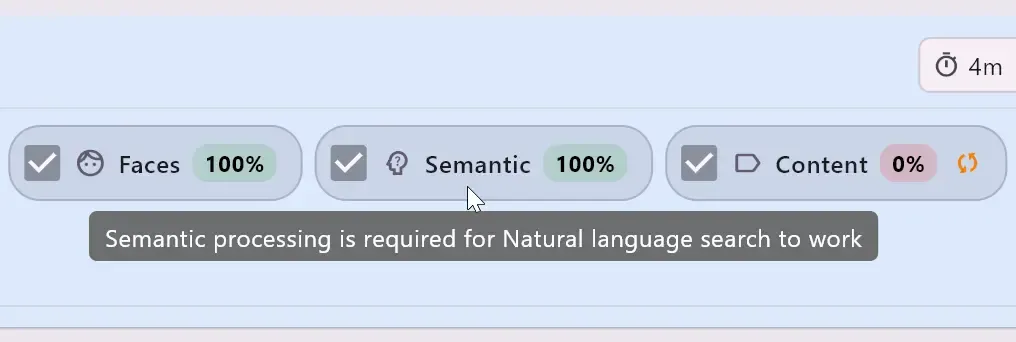
When ClipCatalog indexes your media, it builds a semantic model locally on your machine. Processing is GPU-accelerated for speed, with a smart CPU fallback so every system is supported. Progress is tracked per folder in the directories view, and you can pause or resume at any time.
Example queries users will actually try
These are the kinds of semantic video searches that are annoying with exact tags but natural in description-based search:
What this feature is best at
This is the strongest pitch for semantic video search. When users do not know the exact AI tags, natural-language search gives them a faster first pass than tag-by-tag hunting.
If a folder has not gone through semantic processing yet, those clips will not appear in natural-language results. Once indexed, the feature becomes a practical part of day-to-day local search.
Natural-language search is most valuable when paired with transcript filters, folders, dates, and technical filters. It is a retrieval layer inside ClipCatalog, not a separate workflow to learn.
Strictness levels and semantic relevance sorting make the feature easier to trust because users can widen or tighten results directly instead of guessing what the model is doing.
Natural-language search vs other ClipCatalog search modes
This page should help users choose the right search method instead of repeating the broad story from the main video-search page.
Use natural-language search when you want to describe a scene in plain language. Use AI tags when you want exact visual concepts or tighter on-screen filtering.
Use transcript search when you remember a quote, phrase, or name that was said. Use natural-language search when you remember what the shot looked like rather than what someone said.
The broader video-search page explains the full ClipCatalog workflow. This page should convert users specifically looking for semantic or natural-language video search software.
ClipCatalog delivers natural-language video search inside the Windows desktop app, so local footage libraries get semantic retrieval without moving the workflow into a hosted browser product.
Frequently asked questions
It is ClipCatalog's semantic search mode for local video libraries. You describe the footage you want in plain language, and the app retrieves the closest matching clips from your indexed library.
AI tag search is better when you want exact visual concepts. Natural-language search is better when you remember the scene broadly and want to search by description instead of guessing exact tags.
Transcript search is for spoken words, quotes, and names. Natural-language search is for scene meaning and visual description, even when nothing useful was said in the clip.
They control semantic strictness. Relaxed broadens the match set for discovery, Balanced is the default middle ground, and Strict keeps results closer to the strongest conceptual matches.
Often yes. Footage indexed before semantic processing was added may need one re-processing pass so it becomes discoverable by natural-language search.
Yes. ClipCatalog can sort results by semantic relevance so the closest conceptual matches appear first.
Yes. That is one of the strongest reasons to use the feature. Start with a description-based search, then narrow results with transcript words, folders, dates, resolution, duration, and other filters.
ClipCatalog reports that directly in the UI. If required assets are still downloading or the local vector database is unavailable, the app tells you clearly instead of pretending semantic search is ready.
Where natural-language search fits in the buying decision
Users evaluating ClipCatalog for semantic search usually also want to know how it connects to the rest of the product. These related feature pages cover the adjacent workflows without turning this page into a generic overview.
See the broader ClipCatalog search workflow if you want one page covering semantic search, transcript search, people, metadata, and technical filters together.
Go here when you want exact visual concept search rather than description-first semantic retrieval.
Go here when your main retrieval problem is spoken dialogue, quotes, names, or anything someone said on camera.
Go here when your main concern is searching across archive folders and disconnected external drives without losing library context.
Relevant comparisons
If you are evaluating this workflow against other tools, start with these side-by-side pages.
Try ClipCatalog free — up to 500 videos
No account required. Your footage stays on your computer.
License terms and installer availability