
YouTube footage manager — search your archive by AI
After years of filming, your footage lives across multiple drives — project files, B-roll folders, old camera imports. When you need that sunset from last year's travel shoot or a specific soundbite for a montage, digging through scattered folders takes longer than the edit itself.
ClipCatalog turns your scattered footage folders into a searchable library. Search by what's in the shot, what was said on camera, or any production metadata — all on your own computer, with no cloud uploads.
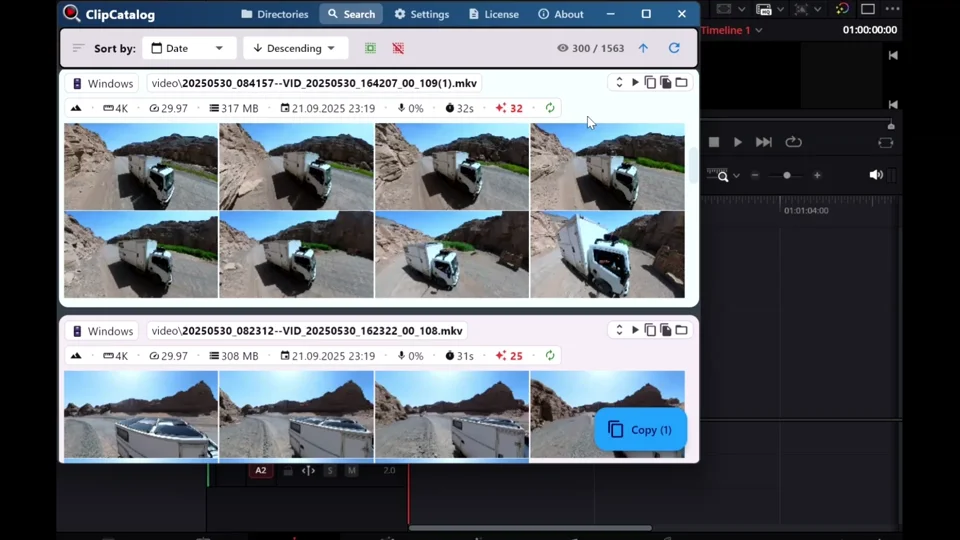
Search by what's in the shot
Detected content recognizes objects and scenes — "street food", "studio", "car", "sunset", "interview" — so you can find b-roll by what you remember seeing, not by filename.
Search by what was said
Local speech-to-text transcription indexes every word said on camera. Need the moment you mentioned a product, told a story, or said "subscribe"? Search and jump to it.
Drag clips into your editor
Find the clip you need and drag it straight into your editing software. No exporting, no file copying, no middle steps. Drag & drop has been tested with CapCut, PowerDirector, Kdenlive, Premiere Pro, Vegas, and ShotCut. Many other editors will likely work fine too.
The growing footage archive problem every YouTube creator faces
Publishing consistently means your footage library grows with every shoot. Compilations, montages, and B-roll reuse all depend on finding specific clips across years of accumulated footage — on your main drive, backup drives, and old project disks. Without a search tool, that means scrubbing through scattered folders by hand, or re-shooting what you already have.
Before ClipCatalog
- Footage is searchable only by filename, folder name, and date — not by what's actually in the clip.
- Finding the right b-roll takes longer than editing it into the timeline.
- Old projects live on external drives you rarely plug in — good footage effectively disappears.
- You know you filmed something usable, but it's faster to re-shoot than to dig through archives.
With ClipCatalog
- Search by "what's in the shot" using detected content — no manual labeling required.
- Search by words you said on camera using transcript search.
- Index drives once, keep them searchable even when unplugged — reconnect when you need the file.
- Drag clips directly into your timeline without leaving the app.
How it works for YouTubers and vloggers
You don't need to rename files, reorganize folders, or upload anything. Point ClipCatalog at your existing project folders and it builds a searchable catalog locally.
Add your footage folders
Point ClipCatalog at the folders where your footage already lives — project folders, camera card imports, external SSDs, archive drives. No reorganizing needed.
ClipCatalog indexes everything locally
The app scans your clips, generates thumbnails, and runs detected content and speech-to-text transcription — all on your own hardware. GPU acceleration is available to speed things up.
Search, find, and edit
Type a search term, apply filters, or combine detected content with transcript words. Preview clips right inside ClipCatalog, then drag the ones you need into your timeline.
Example footage searches that become instant
Once your footage library is indexed, finding a specific clip is as fast as typing a search. Here are the kinds of things you can find:
YouTube creator workflows that save hours
These are the kinds of situations where a searchable footage archive saves hours of digging.
Finding b-roll for a new video
You need a sunset time-lapse or a busy street shot for your intro. Instead of scrubbing through 20 project folders, search "sunset" or "street" and get every matching clip — sorted, with thumbnails, ready to drag into your timeline.
Callbacks to older videos
You want to reference something you said three months ago. Instead of re-watching old uploads, search for a few key words in your transcript archive and find the original source clip with the raw footage — ready to cut in.
Building a best-of compilation
Compilations and montages need the right B-roll from across years of footage — that sunset from Portugal, the street food market in Tokyo, or a reaction shot from a collab two years ago. Search your entire library by what's in the shot and pull exactly what you need, instead of scrubbing through old project folders.
Repurposing footage for Shorts and Reels
Filter for vertical footage, or search for a memorable line by keywords you said on camera. ClipCatalog helps you find clip-worthy moments buried in hours of raw footage without re-watching everything.
Multi-camera shoots and collaborations
When footage comes from multiple cameras, phones, or collaborators, files end up in scattered folders with inconsistent naming. Add all the folders to ClipCatalog and search one unified library.
Recovering footage from old drives
That archive drive from last year — you know there's good footage on it, but you've forgotten exactly what. Plug it in once, index it, and now its contents are searchable even after you unplug it again.
Smart filters for your video footage workflow
ClipCatalog automatically classifies your footage and extracts metadata, so you can filter without manual labeling.
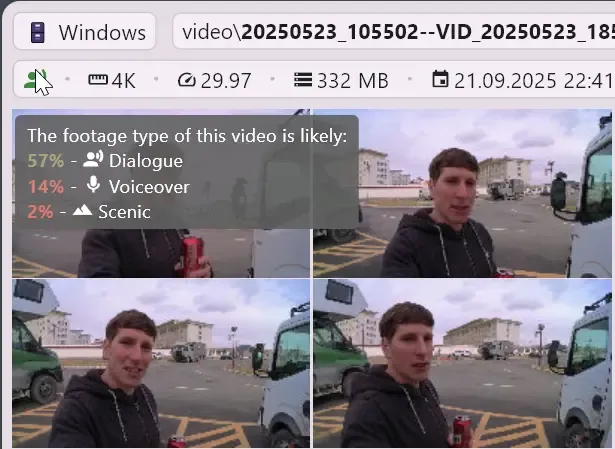
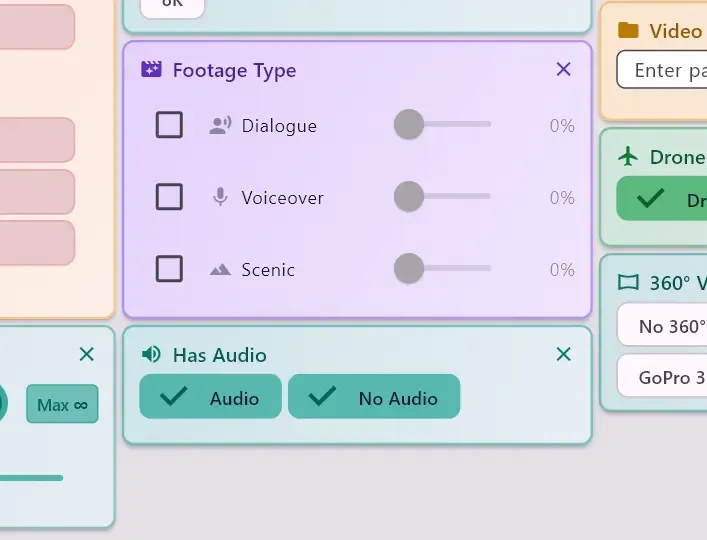
Footage type filter
Filter clips by dialog, voiceover, or scenic categories. Find talking-head footage, voiceover-ready shots, or b-roll in seconds — no manual labeling required.
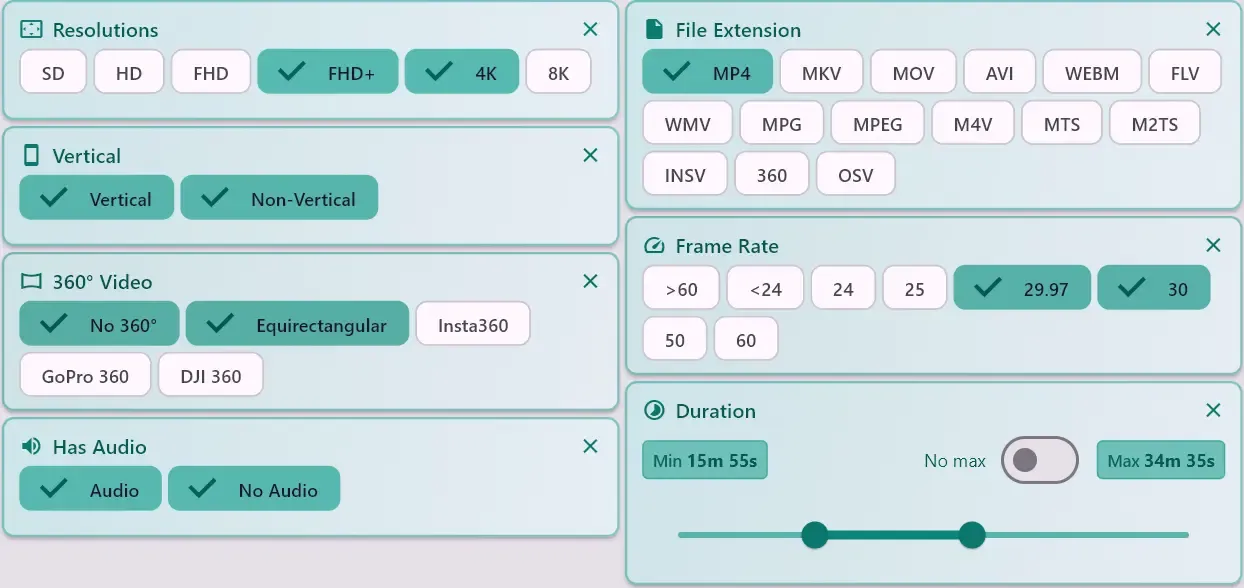
Camera filter
Filter by camera name to separate A-cam from B-cam, phone footage from mirrorless, or action camera clips. Essential for multi-camera shoots.
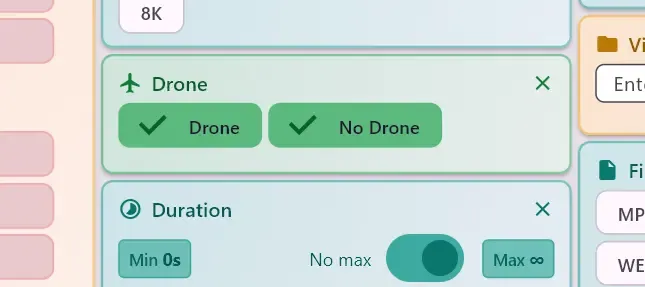
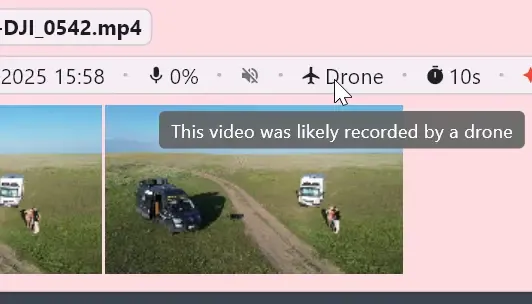
Drone footage
Filter by drone capture type to instantly access all your aerial shots across projects and drives.
What to expect from a YouTube footage manager
ClipCatalog is designed to be practical and honest. Here's what you should know before getting started.
Works with your existing folder structure
ClipCatalog indexes your project folders in place — it doesn't move, rename, or restructure anything. Your project files, exports, and raw footage all stay exactly where they are.
Index at your own pace
The initial index uses CPU and optionally GPU, so it's best to run it when you're not actively editing. You can interrupt sync at any time, resume later, and queue folders individually or all at once for sequential processing. After the first run, only new or changed files are processed — searches are always fast.
Safe for unreleased and sponsor content
All AI processing runs locally on your machine — nothing is uploaded to any server. Your unreleased videos, early cuts, and sponsor deliverables stay private. The catalog itself is stored in an encrypted local database.
GPU acceleration available
ClipCatalog can use your GPU for content detection (DirectML) and transcription (Vulkan) on Windows. A built-in transcription benchmark lets you test which device is fastest for your hardware. All processing stages have intelligent fallback to CPU.
Why local-first matters for creators
As a YouTuber or vlogger, your raw footage is your most valuable asset. Unreleased videos, early cuts, sponsor content, and client work are sensitive material you'd rather not upload to someone else's server for AI processing. ClipCatalog keeps every frame on your own machine — no cloud dependency, no data sharing.
Local processing also means you're not dependent on a subscription service staying online. Your catalog is stored in an encrypted local database on your PC. If the internet goes down, if a cloud service shuts down, or if you prefer working offline — your searchable footage library keeps working.
YouTube footage manager — FAQ
Can I search my footage by what I said on camera?
Yes. ClipCatalog transcribes the audio in your videos locally using speech-to-text AI and stores the words. Search for a spoken word — a product mention, a topic, a name — and jump straight to the clip where it was said. To narrow results, use All/Any matching (AND/OR) when combining multiple terms.
Does it upload my footage to the cloud?
No. ClipCatalog is local-first — all indexing and searching happens on your computer. Your footage never leaves your machine. This is especially important if you work with unreleased content or client footage.
Can I drag clips into my video editor?
Yes. Find clips in ClipCatalog and drag them directly into your editing software. Drag & drop has been tested with CapCut, PowerDirector, Kdenlive, Premiere Pro, Vegas, and ShotCut. Many other editors will likely work fine too.
Will it slow down my editing machine?
The initial indexing uses CPU and optionally GPU resources, so it's best to run it when you're not in the middle of an edit. After the first index, browsing and searching are lightweight. You can interrupt sync at any time and resume later — queue individual folders or "enqueue all" and process them sequentially when convenient.
How does it handle footage across multiple drives?
You can add folders from internal drives, external SSDs, USB drives, and camera card dumps. ClipCatalog treats them all as one library. Even if a drive is disconnected, the catalog remains searchable — reconnect when you need the actual file.
What video formats does it support?
ClipCatalog supports common video formats including MP4, MOV, MKV, AVI, and more — from phones, DSLRs, mirrorless cameras, action cameras, and drones. If FFmpeg can read it, ClipCatalog can index it.
How long does the first index take?
It depends on your library size and which AI features are enabled. A few hundred clips can finish in under an hour. Larger archives with thousands of clips take longer. After the initial index, only new or changed files are processed.
Can I search in languages other than English?
Yes. Detected content labels are available in 10 languages, so you can search your library in your native language. Transcript search works for any language supported by the Whisper speech-to-text model.
Is there a free trial?
Yes — up to 500 videos and 10 hours of total duration, with full access to all features including detected content, transcript search, and face recognition. No account or credit card required.
Does it work on Mac or Linux?
ClipCatalog is currently available for Windows only (Windows 10 and 11). A GPU helps speed up AI processing, but it works on CPU too.
Features that power your YouTube footage library
ClipCatalog combines AI search, production metadata filters, and editor-friendly workflows to turn your messy footage folders into a library you can actually use.
Detected content
Search by what's in the shot — "beach", "car", "interview", "studio" — without labeling anything yourself.
Transcript search
Find clips by what was said on camera — perfect for callbacks, soundbites, and interview highlights.
Advanced search & filters
Filter by resolution, frame rate, duration, date, camera, vertical/horizontal, drone, and more.
External drive support
Index footage across multiple drives and keep everything searchable even when drives are unplugged.
Relevant comparisons
If you are evaluating this workflow against other tools, start with these side-by-side pages.
Explore other workflows
Best for
- YouTubers who publish regularly and need to reuse footage across videos.
- Vloggers with growing archives spread across project folders and external drives.
- Creators who want to find old soundbites, callbacks, or b-roll without manual digging.
- Anyone who doesn't want to upload raw footage to a cloud service for AI processing.
- Creators building b-roll libraries, compilations, or repurposing old content for Shorts and Reels.
Try it with your own footage
The best way to see if ClipCatalog works for your workflow: pick a project folder with a few hundred clips, let it index, and try searching for a scene you remember or a few keywords you said on camera.
Try ClipCatalog free — up to 500 videos
No account required. Your footage stays on your computer.