
Video footage library for filmmakers & editors
When your projects span months and terabytes, finding the right clip becomes a bigger time sink than the edit itself. Pulling selects, chasing interview quotes, and re-finding B-roll across drives and project folders — it all adds up.
ClipCatalog turns your scattered footage archive into a searchable library. Search by what's in the shot, what was said on camera, or who appears — across every project folder and external drive, all on your own computer with no cloud uploads.
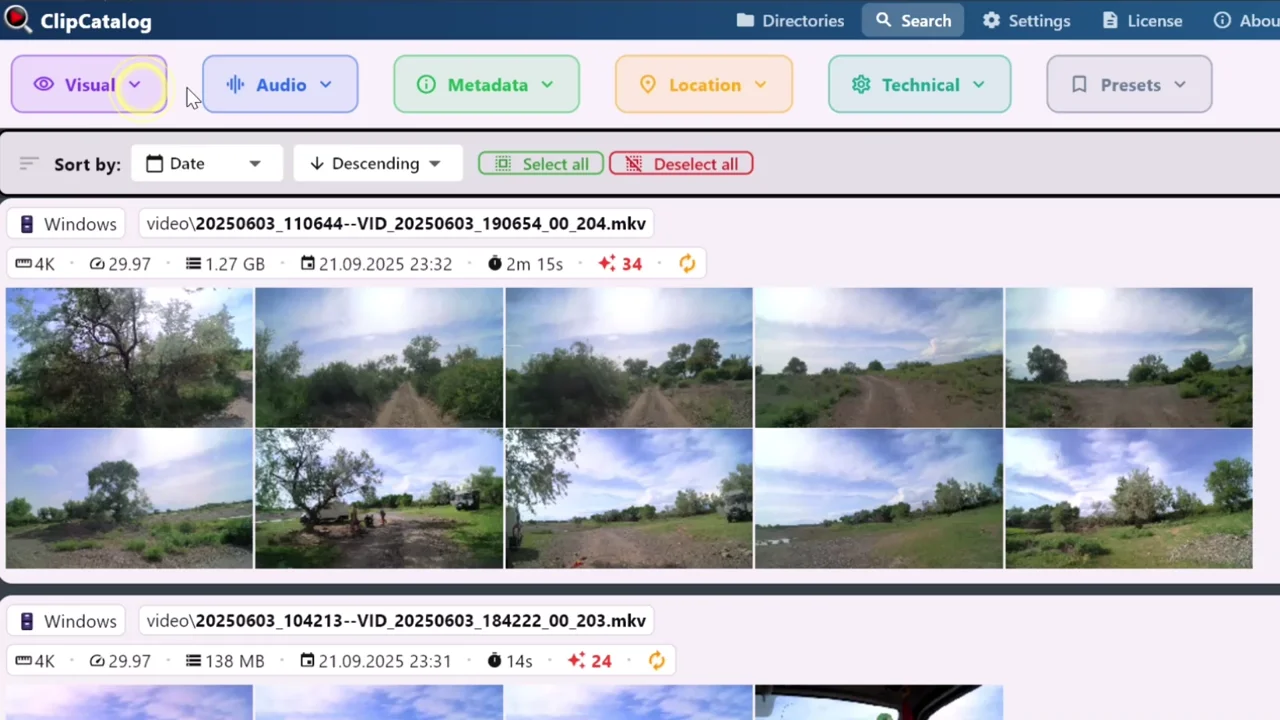
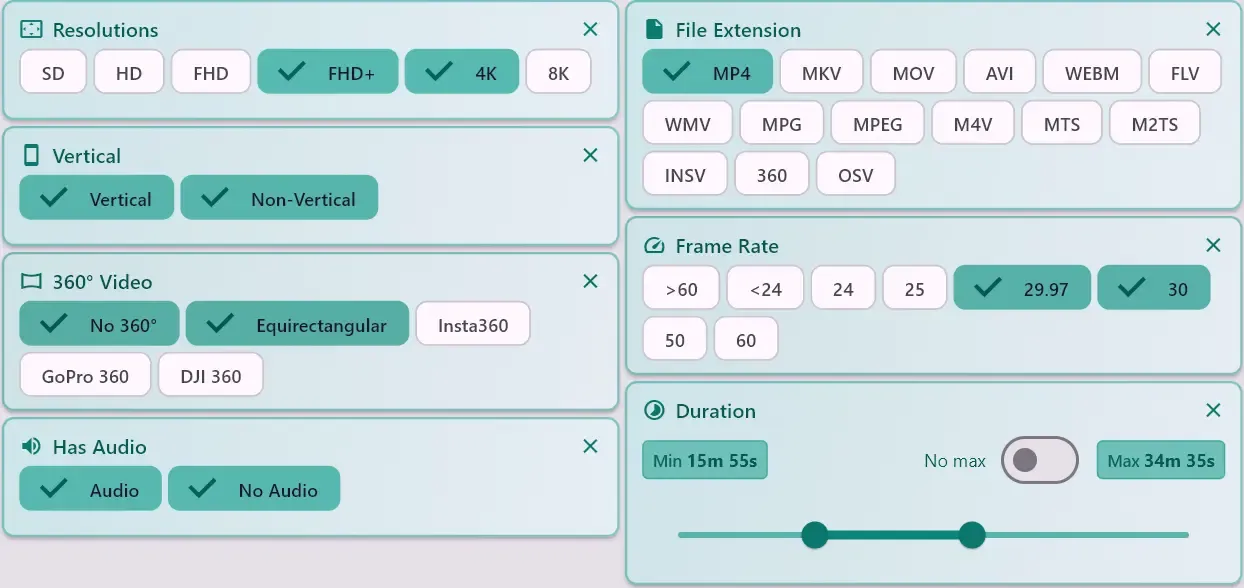
Filter footage by visual content and technical metadata
Detected content recognizes objects, scenes, and actions — "interview", "crowd", "car", "city skyline", "wide shot" — so you can find coverage by what you remember seeing, not by filename or folder structure.
Combine visual search with technical filters for resolution, frame rate, duration, codec, and orientation to narrow results fast — especially across large, mixed-format archives.
Drag clips straight into your timeline
Find the clip you need and drag it straight into your editing timeline. No exporting, no file copying, no middle steps. Drag & drop has been tested with CapCut, PowerDirector, Kdenlive, Premiere Pro, Vegas, and ShotCut. Many other editors will likely work fine too.
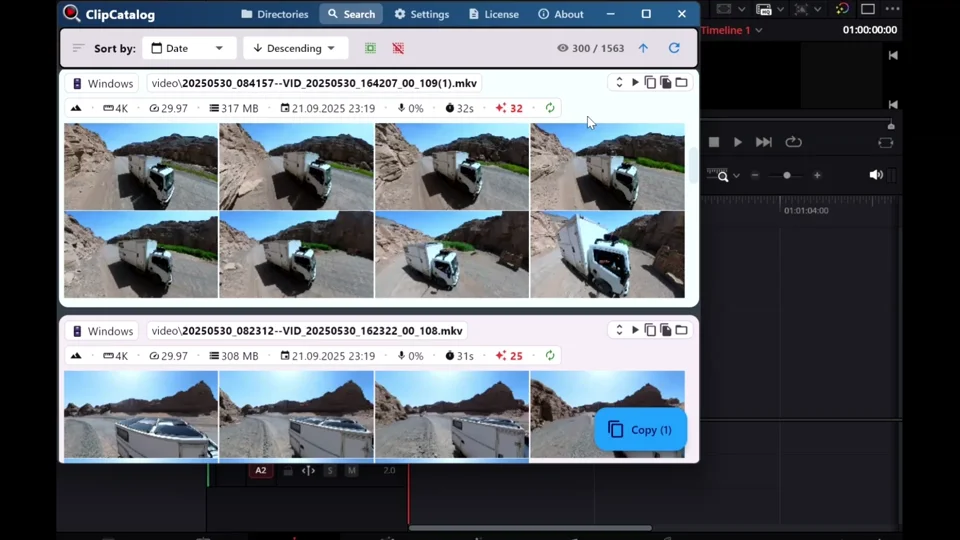
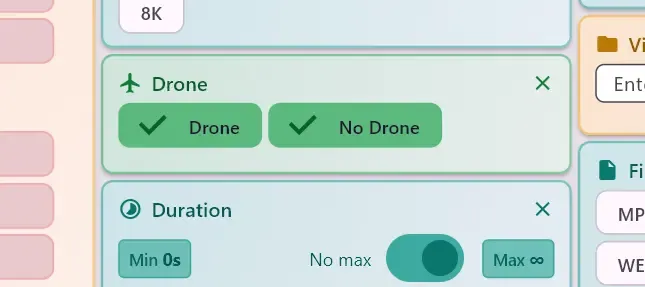
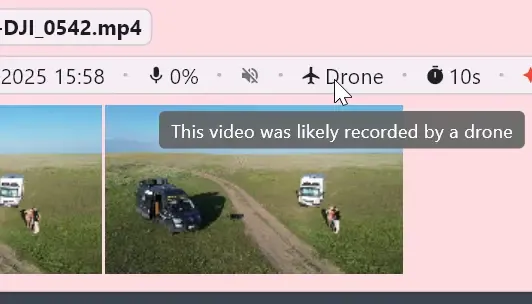
Automatically detect drone and aerial footage
ClipCatalog automatically identifies drone and aerial footage during indexing. Filter your entire library to find aerial shots across all projects and drives — no manual labeling required.
The footage management problem every small studio faces
Enterprise teams use expensive MAM systems with dedicated IT support. But when you're a freelance editor or a two-person production company, your "asset management" is often a pile of folders, spreadsheets, and memory. That works until it doesn't.
Before ClipCatalog
- Selects and stringouts are tracked in spreadsheets or scattered across project bins that don't talk to each other.
- Finding an interview quote means scrubbing through hours of footage or manually logging timecodes.
- Coverage lives across project drives, archive SSDs, and assistants waste hours re-finding the same shots.
- Your editing software's media browser only sees the current project — not your full library.
With ClipCatalog
- Search your entire footage archive from one interface — across all projects, all drives, all years.
- Find interview footage by keywords using transcript search — no manual logging required.
- Use detected content to find B-roll, coverage, and specific shot types without labeling anything yourself.
- Drag matching clips straight into your editing timeline or batch-copy them to a project folder.
How video footage management works with ClipCatalog
You don't need to rename files, reorganize your folder structure, or upload anything. Point ClipCatalog at your existing project folders and it builds a searchable catalog on your machine.
Add your footage folders
Point ClipCatalog at your project folders, camera card imports, archive drives, and external SSDs — wherever your footage already lives. No reorganizing needed.
ClipCatalog indexes everything locally
The app scans your clips, generates thumbnails, and runs detected content and speech-to-text transcription — all on your own hardware. Supports any format FFmpeg can read. GPU acceleration is available to speed up processing.
Search, find, and cut
Type a search term, apply filters, or combine detected content with transcript words. Preview clips right inside ClipCatalog, then drag the ones you need into your editing software.
Example footage searches that become instant
Once your archive is indexed, finding the right clip is as fast as typing a search. Here are the kinds of things you can find:
Film editor workflows that save hours in post
These are the situations where a searchable footage archive saves hours of digging — and the edit time that comes from just giving up and using whatever clip is easiest to find.
How do I pull selects from hours of documentary footage?
You're assembling a rough cut and need to find every time a subject mentioned a key topic. Instead of scrubbing through hours of interviews, search the transcript for the keyword and get every matching clip — sorted, with thumbnails, ready to preview.
How do I find B-roll buried in old projects?
You need an establishing shot of a city street, but it's buried somewhere in last year's projects. Search "city" or "street" and get results from your entire archive — not just the current project's media bins.
Corporate and commercial projects
A client asks for a re-edit using footage from a shoot 6 months ago. Instead of opening old projects in your editing software and hunting through their bins, search your catalog by date range and detected content to pull exactly the shots you need.
Wedding and event editing
Multi-camera events produce hours of footage across several cards. Use face recognition to find every clip of the couple, or search for the vow transcript to find the exact moment — without scrubbing 3 camera angles by hand.
Assistant editor handoffs
On a small team, one person indexes the footage and another pulls selects. ClipCatalog gives your assistant a searchable library instead of a pile of folders — saving back-and-forth about "where is that shot" and "which drive has the interviews."
How do I search footage on disconnected archive drives?
That archive drive from a past project — you know there's usable footage on it, but you've forgotten exactly what. Plug it in once, index it, and now its contents are searchable even after you unplug it again.
Save search presets for your editing workflow
Build complex filter combinations once and re-apply them instantly. Think of them as smart bins that work across your entire library — not just one project.
Interview finder
Filter for clips with high speech coverage — talking-head footage, interviews, and dialogue scenes. Combine with transcript search to find specific sound bites.
B-roll browser
Filter for clips with low speech coverage and high visual variety — scenic shots, establishing shots, cutaways, and transitions.
Drone footage
Filter by drone capture type to instantly access all your aerial shots across every project and drive.
What to expect from a video footage library
ClipCatalog is designed to be practical and honest. Here's what you should know before getting started.
Works with your existing folder structure
ClipCatalog indexes your project folders in place — it doesn't move, rename, or restructure anything. Your project files, renders, and raw footage all stay exactly where they are.
Run indexing on your own schedule
The initial index uses CPU and optionally GPU, so it's best to run it when you're not in the middle of a heavy edit. You can pause syncing at any time. After the first run, only new or changed files are processed — searches are always fast.
Safe for client and NDA footage
All AI processing runs locally on your machine — nothing is uploaded to any server. Your unreleased projects, client footage, and NDA material stay private. The catalog itself is stored in an encrypted local database.
External drives stay searchable when disconnected
Once a folder is indexed, the catalog stays on your PC. You can search, browse thumbnails, and see metadata even when the original drive is disconnected. ClipCatalog also survives drive letter changes without needing to re-index.
GPU acceleration available
ClipCatalog can use your GPU for content detection (DirectML) and transcription (Vulkan) on Windows. A built-in transcription benchmark lets you test which device is fastest for your hardware. All processing stages have intelligent fallback to CPU.
Not a replacement for your editing software
ClipCatalog doesn't edit video — it helps you find what you need so you can edit faster. Think of it as a search layer that sits alongside your editing software, not a replacement for it.
Why local-first matters for production work
As a filmmaker or editor, you regularly work with footage under NDA, unreleased client projects, and material you're contractually obligated to protect. Cloud-based tools require uploading that footage to someone else's server for AI processing. ClipCatalog keeps every frame on your own machine — no cloud dependency, no data sharing, no risk of a breach you can't control.
Local processing also means you're not dependent on a subscription service staying online or changing its terms. Your catalog is stored in an encrypted local database on your PC. If the internet goes down, if a service shuts down, or if you're editing on location with no connectivity — your searchable footage library keeps working.
Still comparing options? See the privacy-first video software shortlist for a broader buyer guide focused on local storage and offline workflows.
Video footage library for editors — FAQ
How is this different from my editing software's media browser?
Your editing software's media browser only sees files inside the current project. ClipCatalog indexes footage across all your projects, drives, and archives — so you can search your entire library from one place, even across disconnected drives.
Does it replace an enterprise MAM system?
No. Enterprise MAM systems are built for large teams with shared storage and complex permissions. ClipCatalog is designed for freelance editors and small studios (1–3 people) who work from local drives and external SSDs and need fast, practical search without the overhead.
Does it upload my footage to the cloud?
No. ClipCatalog is local-first — all indexing and searching happens on your computer. Your footage never leaves your machine. This matters when you work with unreleased content, client footage, or NDA material.
Can I drag clips into my editing software?
Yes. Find clips in ClipCatalog and drag them directly into your timeline. Drag & drop has been tested with CapCut, PowerDirector, Kdenlive, Premiere Pro, Vegas, and ShotCut. Many other editors will likely work fine too.
Will it slow down my editing machine during indexing?
The initial index uses CPU and optionally GPU resources, so it's best to run it when you're not in the middle of a heavy edit session. After the first index, browsing and searching are lightweight. You can also pause syncing at any time.
How does transcript search work for interviews?
ClipCatalog transcribes the audio in your videos locally using speech-to-text AI and stores the words. Search for a spoken word and jump to the clips where it was said — across your entire archive. To narrow results, use All/Any matching (AND/OR) when combining multiple terms.
Can it handle footage spread across multiple external drives?
Yes. You can add folders from internal drives, external SSDs, USB drives, and project dumps. ClipCatalog treats them all as one library. Even if a drive is disconnected, the catalog remains searchable — reconnect when you need the actual file.
What happens when a drive letter changes or a drive is moved?
ClipCatalog tracks volumes by stable identifiers, not drive letters. If a drive letter changes or a mount point moves, your catalog stays intact without needing to re-index.
What video formats does it support?
ClipCatalog supports common production formats including MP4, MOV, MKV, AVI, and more — from DSLRs, mirrorless cameras, cinema cameras, action cameras, and drones. If FFmpeg can read it, ClipCatalog can index it.
How long does the first index take?
It depends on your library size and which AI features are enabled. A few hundred clips can finish in under an hour. Larger archives with thousands of clips take longer. After the initial index, only new or changed files are processed.
Can I search in languages other than English?
Yes. Detected content labels are available in 10 languages, so you can search your library in your native language. Transcript search works for any language supported by the Whisper speech-to-text model.
Is there a free trial?
Yes — up to 500 videos and 10 hours of total duration, with full access to all features including detected content, transcript search, and face recognition. No account or credit card required.
Does it work on Mac or Linux?
ClipCatalog is currently available for Windows only (Windows 10 and 11). A GPU helps speed up AI processing, but it works on CPU too.
Features that power your film editing library
ClipCatalog combines AI search, production metadata filters, and editor-friendly workflows to turn your scattered footage into a library you can actually search.
Transcript search
Find clips by what was said on camera — perfect for interview selects, sound bites, and dialogue scenes.
Detected content
Search by what's in the shot — "beach", "car", "interview", "crowd" — without labeling anything yourself.
Advanced search & filters
Filter by resolution, frame rate, duration, date, camera, drone, vertical, and more — combine with AI search.
External drive support
Index footage across multiple drives and keep everything searchable even when drives are unplugged.
Relevant comparisons
If you are evaluating this workflow against other tools, start with these side-by-side pages.
Explore other workflows
Best for
- Freelance video editors who need to search footage across projects and clients.
- Small film studios (1–3 people) who can't justify enterprise MAM systems.
- Documentary editors pulling selects from hours of interview footage.
- Anyone who doesn't want to upload client footage to a cloud service for AI processing.
Try it with your own footage
The best way to see if ClipCatalog fits your workflow: pick a project folder with a few hundred clips, let it index, and try searching for a shot you remember or a few keywords from an interview.
Try ClipCatalog free — up to 500 videos
No account required. Your footage stays on your computer.