
Automatic AI Video Tagging Software — Search Your Footage by AI Tags
ClipCatalog is an automatic video tagging tool that watches your clips and detects scenes, objects, and actions — without manual labeling or cloud uploads. Type what you remember and matching clips surface instantly. If you combine multiple tags, you can switch All/Any matching (AND/OR).
ClipCatalog analyzes each clip and adds AI tags based on what it sees — so you can find footage without ever labeling a file yourself. AI tags and Your tags live together in the Tags filter.
Looking for a step-by-step walkthrough? See how to find B-roll by what's on screen →
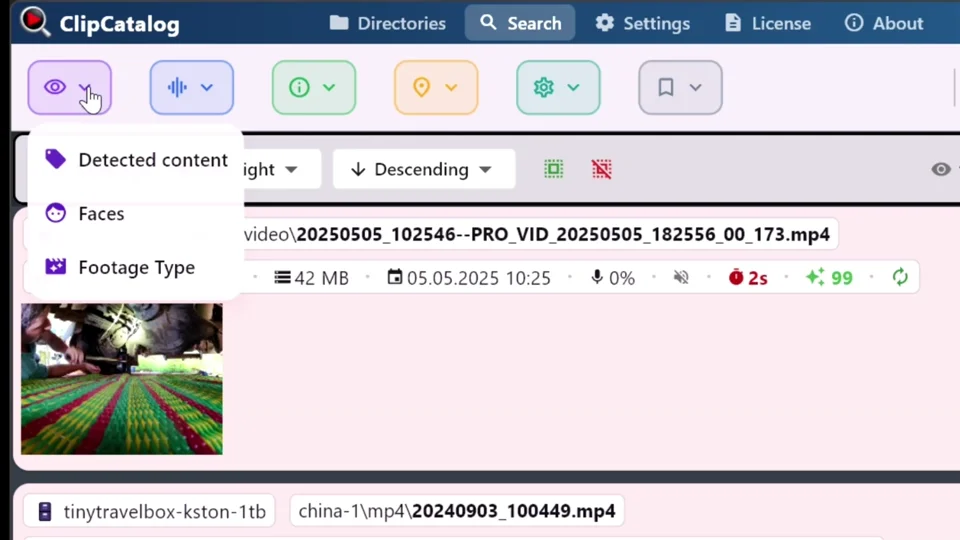
Stop inventing naming conventions and folder structures. AI tags are generated automatically during processing — you search, not sort.
If you remember "mountain" or "interview", just type it. ClipCatalog narrows results fast so you spend less time scrubbing through clips.
Video files are huge and personal. ClipCatalog processes everything on your computer so your footage is never uploaded to a cloud service just to become searchable.
How AI tagging works
ClipCatalog's on-device AI model (RAM++) analyzes frames from your clips and adds AI tags for objects, scenes, and activities — things like beach, car, interview, snow, dog, or city skyline. Think of it like a smart skim across your clip: great for "what's this clip about?" and "does this clip contain X?".
Add any video folder — internal drive, external SSD, or a project dump. No reorganizing needed.
ClipCatalog indexes your clips and detects content using your GPU (with automatic CPU fallback). Nothing leaves your machine.
Type what you remember and matching clips appear. Combine AI tags with other filters to go from thousands of clips to a handful.
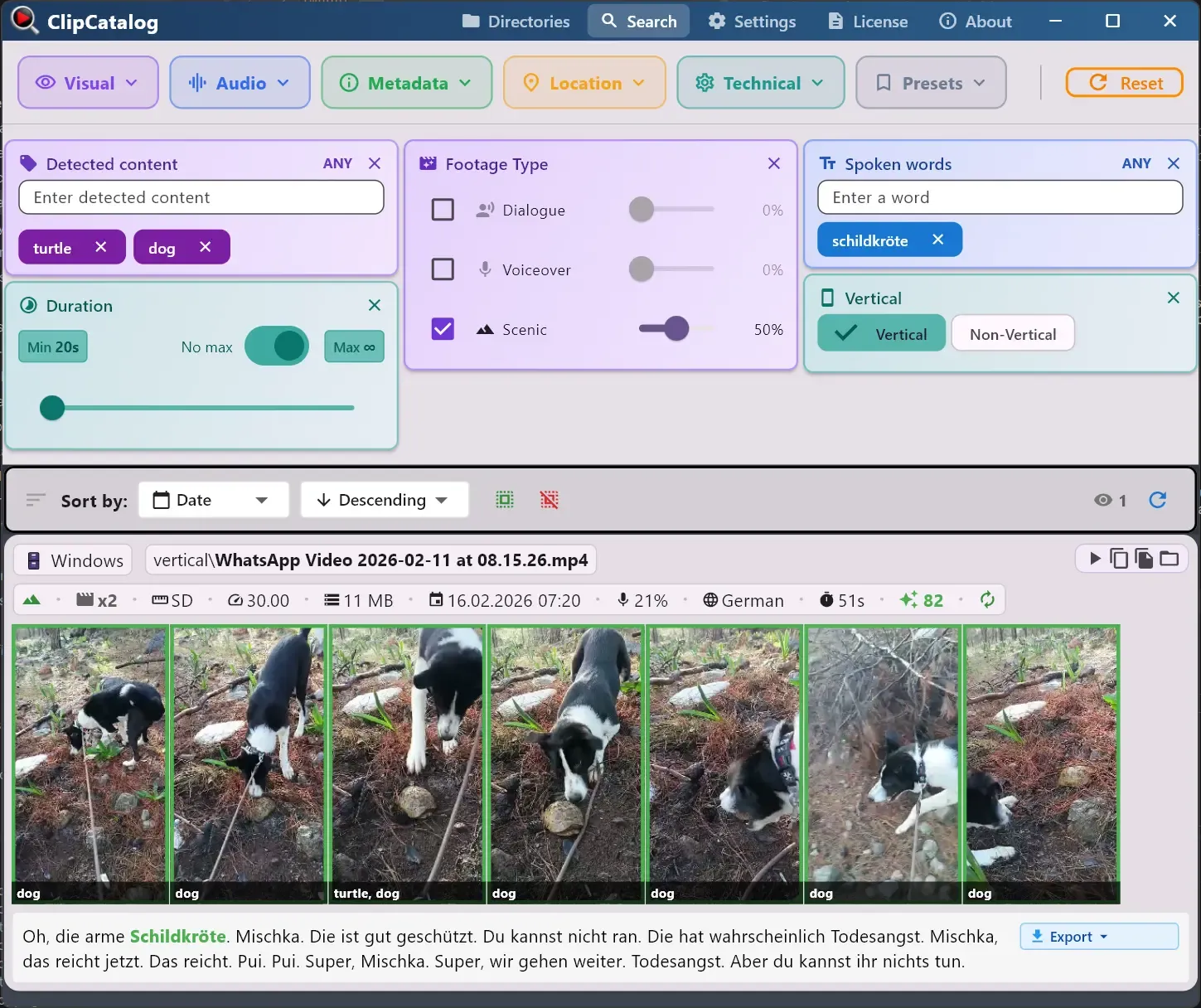
The kinds of searches that work
Instead of claiming "thousands of detectable labels", here are real-world searches creators actually do — and find results for:
You can also combine searches — for example, search for "beach" and then narrow to vertical-only clips for Shorts or Reels, or filter by a specific date range or folder. Explore all search filters →
Real-world workflows
You remember a sunset over the beach but not the file name. Combine the AI tags beach and sunset and switch matching to ALL, so only clips tagged with both remain. You narrow it down fast instead of scrubbing through dozens of clips looking for it.
Small teams often reuse b-roll. When you can search by what's on screen (not just by folder name), your archive becomes reusable instead of a one-time dump you dread opening.
Years of footage across phones, cameras, and hard drives. Search by scene or person to find birthday moments, vacation highlights, and that one clip you remember without opening folder after folder.
Before: folders named A-cam, B-roll, Export_v7_FINAL. After: a searchable library where you type what you remember and find it.
ClipCatalog assigns each clip a highlight score based on visual interest, motion, speech, faces, and other factors. Sort by highlight to surface the strongest, most dynamic clips first — useful when you're looking for standout moments in a large library without watching everything.
What to expect from AI tags
Some things are easy to detect; some things are subtle, tiny in frame, or only appear for a split second. The win is getting to "the right neighborhood" of clips quickly — then you pick the best take.
If you've been burned by auto-labeling that spams irrelevant results, ClipCatalog keeps AI tags focused on what's useful for search. The goal is less clutter and more results for the words you'd actually type.
On Windows, ClipCatalog uses your GPU (via DirectML) to speed up AI tagging. If GPU acceleration isn't available or helpful, it automatically falls back to CPU — fast when it can be, resilient when it can't. Learn about GPU acceleration →
You don't have to reorganize your drives to benefit. Your existing folder chaos can stay as-is while your library becomes searchable and editor-friendly. Works with external drives too →
AI tagging vs. manual tagging
Two ways to make a large video library searchable. Each has its place — here's how they compare for catalog-scale work.
Watch every clip, write descriptions, maintain spreadsheets, invent folder-naming conventions everyone has to follow. The result is precise — but per-clip effort doesn't scale past a few hundred clips, and labels drift the moment two people edit the spreadsheet.
Point ClipCatalog at a folder; an on-device model assigns scene, object, and action tags during processing. No naming discipline required, no per-clip effort, and the same library can be re-tagged later when the model improves — without re-watching anything.
AI tagging finishes a typical library in a fraction of the time manual labeling would take, and is good enough to get you to the right neighborhood of clips fast. Manual labeling is more precise for nuanced or subjective categories — mood, narrative beat, brand-specific terms. The two are complementary: AI tags do the heavy lifting; you can layer Your tags on top for the cases that matter most.
How local AI tagging compares
Most “best video tagging software” lists are cloud services billed per minute or per seat. Here’s how an offline, one-time-license desktop app compares for a personal or studio library.
| How local AI tagging compares | ClipCatalog | Cloud video AI | Photo/video DAM |
|---|---|---|---|
| Where AI runs | On your PC (GPU or CPU) | Uploaded to a server | Often cloud, or none |
| Your footage | Never leaves your computer | Uploaded to process | Varies |
| Pricing | $99 one-time | Per-minute or monthly | Per-seat subscription |
| What it detects | Scenes, objects & actions — plus speech & recurring faces | Varies by API | Mostly manual keywords |
| Library scope | Every drive, folder & NAS you own | Only what you upload | One catalog |
| Platform | Windows desktop | Browser / API | Desktop |
Cloud and DAM capabilities vary by vendor; compared here by category, not by any single product.
Frequently asked questions
No — AI tags are generated automatically while your library is processed. You just search using the words you’d naturally type.
No. Processing happens entirely on your computer. Your footage is never uploaded to a cloud service.
Once the app has downloaded its AI models on first launch, AI tagging and searching happen locally without an internet connection. License validation needs internet from time to time.
Processing can use significant CPU/GPU resources while indexing, so your machine may feel slower during that time. It's a one-time step — once your library is indexed, searches are instant. A capable GPU speeds up processing, and you can pause or limit processing threads if needed.
Try a close synonym — people remember things differently. You can also try a broader scene word. Real searching is iterative, not one perfect query.
Yes. You can layer AI tags with date ranges, folders, transcript words, face filters, and technical metadata to narrow down large libraries fast.
Traditional metadata covers technical details (resolution, codec, date). AI tags add what’s actually in the shot, so you can search by meaning, not just numbers.
ClipCatalog runs on Windows 10/11. A capable GPU speeds up processing via DirectML, but the app falls back to CPU automatically. You don’t need special hardware to get started.
AI video tagging means using machine learning to automatically label video clips based on their visual content. In ClipCatalog, the model adds AI tags like "beach", "interview", or "car" so you can search without organizing files manually.
AI tags are tags that ClipCatalog creates automatically from your video. When you add a folder, the app analyzes each clip and adds AI tags for scenes, objects, and actions on screen. You can use them in the Tags filter, combine them with transcript or face filters, and switch between all-match and any-match modes.
Yes — ClipCatalog is an automatic video tagging tool for Windows 10 and 11. Point it at any folder and it tags clips by scene, object, and action on your local GPU (with CPU fallback). Nothing uploads to the cloud, and there's a free trial for the first 500 videos.
AI video tagging finishes a typical library in a fraction of the time manual labeling would take and is good enough to get you to the right neighborhood of clips fast. Manual labeling is more precise for nuanced or subjective categories. The two are complementary — AI tags do the heavy lifting; Your tags can be added on top for what really matters.
No. ClipCatalog adds AI tags for everyday objects and visual concepts — things like “bottle,” “car,” or “laptop” — so you can search them, but it doesn’t identify specific brands, logos, product models, or barcodes. There’s no product database: AI tags describe what kind of thing is on screen, not which exact product it is.
Yes. ClipCatalog is a one-time purchase ($99) for a Windows desktop app — not a monthly or per-minute cloud subscription. The free trial tags your first 500 videos with no credit card and no account.
Yes. ClipCatalog builds several search signals from one local pass: AI tags for what’s on screen, a searchable transcript of what’s said, recurring-face grouping for who appears, and footage-type filters (dialogue, voiceover, scenic). Combine them in a single search — all on your PC, nothing uploaded.
Even more powerful together
AI tags are powerful on their own, but the real advantage is combining them with other search dimensions in ClipCatalog to go from thousands of clips to exactly what you need.
Find clips by what was said — perfect for interviews, sound bites, and voiceover takes.
Find every appearance of a person across years of footage.
Search clips across archive drives — even when they're unplugged.
Layer AI tags with date, folder, resolution, frame rate, duration, and more.
Relevant comparisons
If you are evaluating this workflow against other tools, start with these side-by-side pages.
Best for
- YouTubers & vloggers hunting for b-roll across dozens of shoot days.
- Filmmakers & editors working with TB-scale project archives.
- Family & travel archivists organizing years of personal footage.
- Small teams that reuse footage across client projects.
- Editors pulling B-roll by what's on screen across a whole library, not just one clip.
Try it with one folder
The best way to see if AI tags work for your footage: process a single project folder or a single shoot day, then try to retrieve 5–10 "I know I shot this somewhere" moments using AI tags alone.
Try ClipCatalog free — up to 500 videos
No account required. Your footage stays on your computer.
License terms and installer availability