
Search spoken words inside your videos
ClipCatalog turns speech in your videos into searchable text on your Windows PC. Search transcripts and captions, find the right quote or name, and jump straight to the moment it was said.
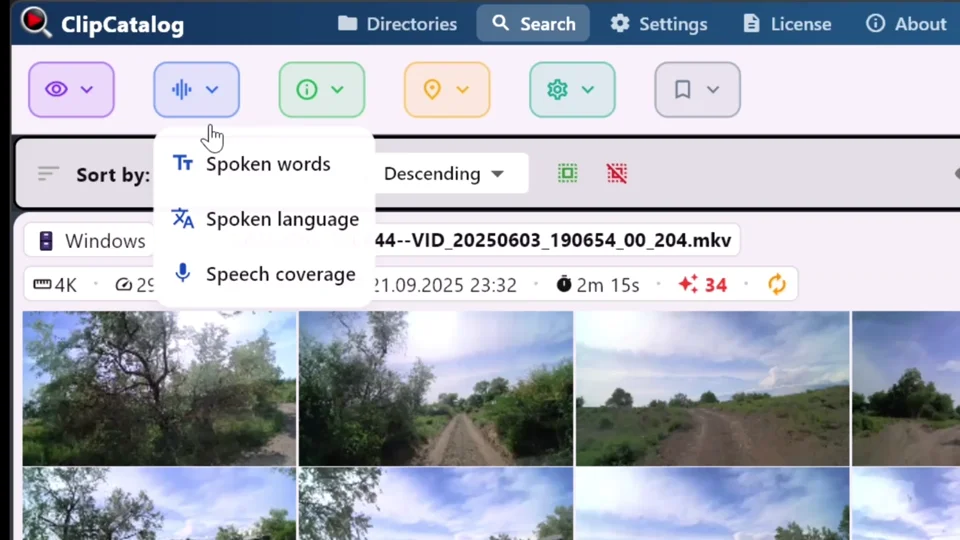
Prefer a walkthrough? See the guide on how to search your videos by spoken words →
Search for names, topics, and memorable phrases across your whole library without scrubbing timelines. Pull the line you need in seconds instead of replaying hours of footage.
Search results point you to the clip and the spoken moment that matched. Preview the result, confirm the line, and move straight into editing.
Export transcripts as plain text or SRT subtitle files. Use them in your editor, publish captions, or keep them with the footage for future retrieval.
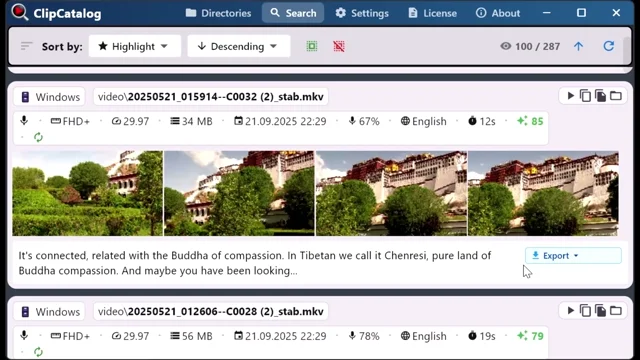
Export as plain text, SRT subtitles, or copy to clipboard.
How searchable transcripts work
ClipCatalog extracts audio from each video, runs it through a local Whisper speech-to-text engine, and stores time-aligned transcript words in your encrypted library. After that, spoken words become searchable across your archive.
Add any video folder — internal drive, external SSD, or a project dump. ClipCatalog scans and detects all supported video files automatically.
ClipCatalog extracts audio and runs Whisper transcription on your machine. GPU acceleration via Vulkan is available if your hardware supports it — otherwise it falls back to CPU automatically.
Type any word, topic, or name and ClipCatalog surfaces matching clips. Combine transcript words with AI tags, person filters, date ranges, and more to zero in on exactly what you need.
Transcript filters — words, language, and speech coverage
ClipCatalog gives you three transcript-aware filters that go beyond simple keyword search:
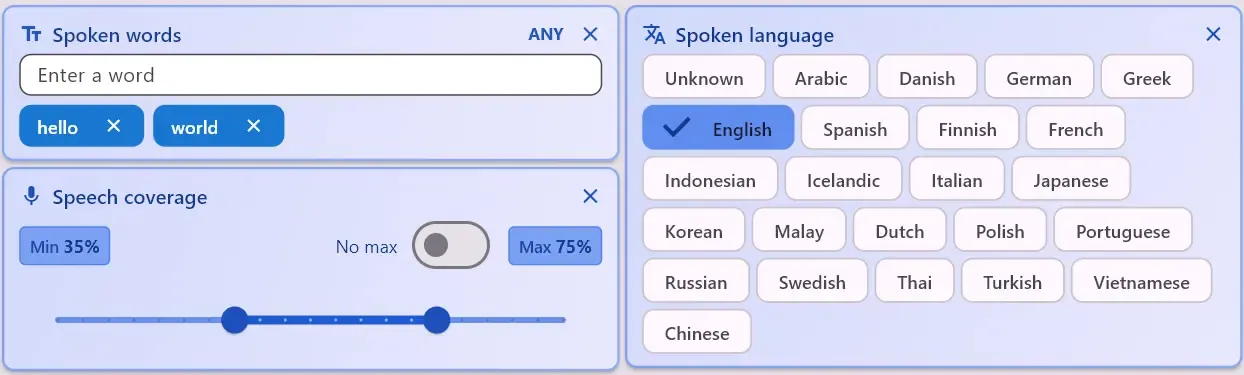
Search for one or more spoken words. When you enter multiple transcript words, switch between All (every word must appear) and Any (at least one word must appear) matching to search broadly or narrowly.
Filter by detected language — useful when your library contains footage in multiple languages and you want to narrow to just one.
Set a min/max speech percentage to find "mostly talking" clips (interviews, narration) or "mostly silent" clips (ambient, scenic b-roll).
Transcript search examples
Transcript search shines when you remember a quote, a name, or a topic but not which file contains it. Pair it with automatic video tagging to filter by visual content as well. These are the kinds of spoken-word searches creators actually do:
You can combine transcript searches with other filters — for example, search for a word, then narrow to a specific date range, a particular folder, or clips with a certain person's face. Explore all search filters →
Transcript-search workflows for video editors
You have 20 hours of interview footage across multiple shoot days. Instead of rewatching everything, search for the topic or keywords you need — childhood, first job, turning point — and jump straight to the moments that matter for your story assembly.
Your client wants a short clip of the CEO talking about a launch for LinkedIn. Instead of scrubbing through the full talk, search for the key spoken words, preview the matches, and grab the right line directly.
You recorded a 2-hour stream and need to find the best moments to clip. Search for key words or reactions you remember, preview the matches, and export the clips — no manual scrubbing through the full recording.
Need SRT files for accessibility or platform requirements? ClipCatalog transcribes as part of indexing, so you can export subtitle files directly — no separate transcription step or third-party service needed.
Automatic footage type categorization
Once ClipCatalog has processed speech, AI tags, and faces for your clips, it automatically categorizes each video into footage types: dialog, voiceover, and scenic.
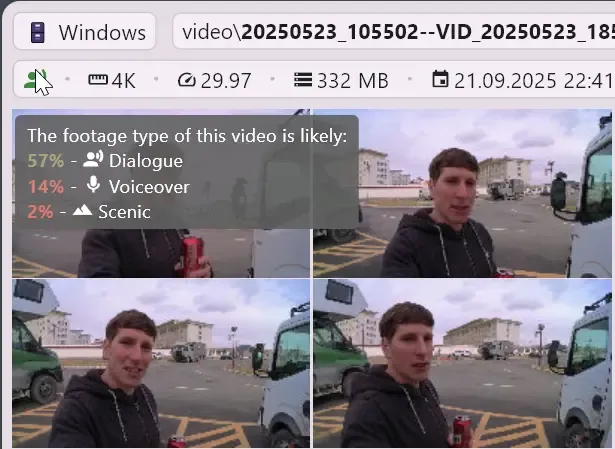
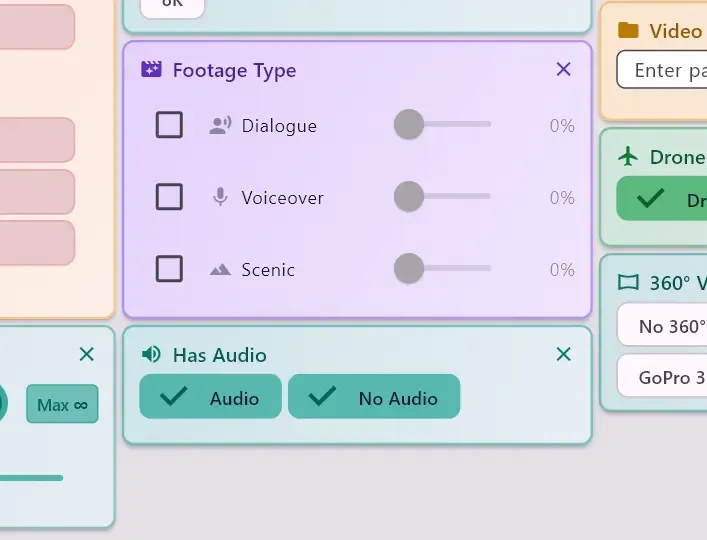
Clips with people speaking on camera — interviews, talking heads, conversations. Great for finding interview selects or A-roll.
Speech without a visible speaker — narration, commentary over b-roll, tutorial audio. Useful for separating narration tracks from visual content.
Footage with little or no speech — landscapes, b-roll, establishing shots, ambient clips. Filter for these when you need visuals without dialogue.
You can filter and sort by footage type shares to quickly find the right kind of clip for your edit. This works alongside transcript search — for example, search for a word and filter to dialog-only clips. Explore all search filters →
What to expect from transcript search
Transcription works best with clear, well-recorded audio such as interviews, narration, voiceovers, meetings, and lectures. These are the clips where finding a specific line saves the most time.
Heavy background noise, overlapping speakers, and thick accents can reduce accuracy. ClipCatalog includes quality guardrails to suppress low-confidence transcripts, so you don't get garbage results clogging your searches.
On Windows, transcription can use your GPU via Vulkan for faster processing. ClipCatalog even includes a built-in benchmark to compare CPU vs. GPU speeds on your hardware and auto-select the best backend. Learn about GPU acceleration →
Your audio never leaves your computer. The Whisper engine runs entirely on your machine, so sensitive interview content, client footage, and personal recordings stay private. Learn about local-first privacy →
Frequently asked questions
ClipCatalog is built for large local video libraries on Windows. It indexes every spoken word across folders, external drives, and archive volumes, then lets you search by quote, speaker, or keyword combined with face, scene, and metadata filters — all 100% offline, with no per-minute fees.
Yes — ClipCatalog is a Windows desktop app for transcript-based video search. Drop a folder, let it index speech locally, and search inside transcripts across your full library. No cloud uploads, no subscription, and a free trial that never expires. Evaluating a bigger library? An email unlocks 14 days of full library access, once per installation or email address.
Yes. ClipCatalog generates searchable captions for every video in your library on first index, stores them locally, and lets you search across the entire collection without re-processing. Captions can be exported as SRT.
No — ClipCatalog runs speech-to-text entirely on your computer using a local Whisper engine. Your audio and video files are never uploaded to a cloud service.
Not yet. ClipCatalog searches transcript words (single spoken words), not exact phrases or in-order quotes.
ClipCatalog uses Whisper, a well-regarded speech recognition model. Accuracy is generally good for clear speech in supported languages but can vary with heavy accents, background noise, or overlapping speakers. The app includes quality guardrails to suppress low-confidence results.
Whisper supports many languages. ClipCatalog detects the spoken language automatically and you can filter your library by transcription language. The app UI and AI tags are localized in 10 languages.
Yes — transcripts can be exported as plain text or SRT subtitle files, ready for use in your editor or for publishing captions on platforms like YouTube.
Once the AI models are downloaded on first launch, transcription and search happen locally without an internet connection. License validation needs internet from time to time.
Transcription runs during the one-time processing step, not every time you search. After indexing, searches feel instant. If you have a capable GPU, processing is faster with Vulkan-accelerated transcription.
Yes. You can layer transcript words with AI tags, face filters, date ranges, folders, camera metadata, and more — all in a single query. Each filter narrows results further.
Combine transcript search across large video libraries
Transcript search is powerful on its own, but the real advantage is combining it with other search dimensions in ClipCatalog to go from thousands of clips to exactly the moment you need. Across words, tags, and faces, you can switch All/Any matching (AND/OR).
Combine what was said with what's on screen — search by dialogue and scene content at the same time.
Find clips where a specific person speaks about a specific topic by combining person filters with transcript search.
Search transcripts across archive drives — even ones that are currently unplugged.
Layer transcript words with date, folder, resolution, frame rate, speech coverage, and more.
Need the task-first guide for person search? Start here for the workflow that turns one clip into a reusable face-search filter.
Relevant comparisons
If you are evaluating this workflow against other tools, start with these side-by-side pages.
Best for
- Documentary filmmakers pulling quotes from hours of interview footage.
- YouTubers & vloggers clipping highlights from long-form recordings.
- Podcast editors searching for specific topics across episodes.
- Corporate video teams finding sound bites for social media or internal comms.
Try it with one folder
The best way to test transcript search is to pick a folder with interviews, podcasts, meetings, or dialogue-heavy footage, let ClipCatalog process it, then try to find 3 to 5 specific things someone said.
Understanding transcript search for video
Whether you call it speech-to-text search, dialogue search, caption search, or "Ctrl+F for video" — the idea is the same: let software convert spoken words to text so you can search footage by what was said, not just by file names or folder structure.
Cloud transcription services charge per minute of audio. With ClipCatalog, the Whisper model runs on your hardware — no per-video costs, no upload wait times, no ongoing subscriptions. Processing speed depends on your machine: a capable GPU makes it fast, while CPU-only will be slower for large libraries. Either way, it's a one-time cost — once your archive is indexed, searches are instant and you never pay again.
Editors often remember a few words or a topic from a shoot but have no idea which file it's in. Without transcript search, the only option is scrubbing through clips one by one — or re-watching entire interviews. With searchable transcripts, you type what you remember and the matching clips surface in seconds, saving hours of manual review.
A single word search might return dozens of clips. The real power of ClipCatalog's transcript search is combining it with other filters: search "budget" and narrow to clips from a specific date range, a particular folder, or clips tagged with "interview" by the AI tagger. Each additional filter cuts the results down so you're not sifting through false positives. Explore all search filters →
ClipCatalog tracks how much of each clip contains speech (speech coverage). This lets you do things like "show me clips that are mostly talking" (interview selects) or "show me clips with very little speech" (scenic b-roll). It's a surprisingly useful way to separate dialogue-heavy footage from ambient or music-driven content.
Try ClipCatalog free — up to 500 videos
No account required. Your footage stays on your computer.
License terms and installer availability