
How to find a person in your videos (Windows)
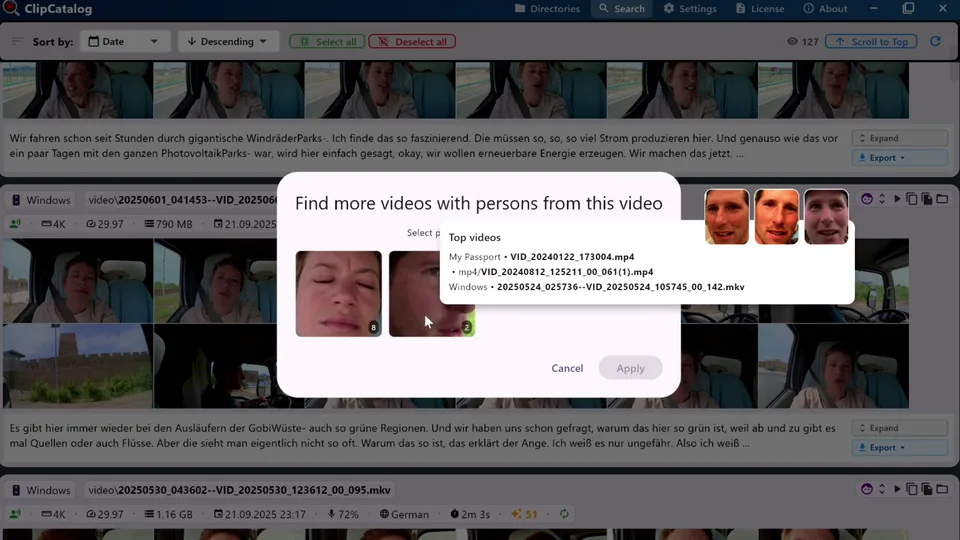
Search by face across local folders, external drives, and old archives — including footage from camcorders, DSLRs, and other phones that lives outside your photo library. ClipCatalog groups recurring people so you can pull matching clips fast.
License terms and installer availability
Looking for the technical feature page? See face recognition for searchable video libraries →
Choose people from detected faces
ClipCatalog groups recurring faces into selectable person filters. Pick one person to find every matching clip, or combine multiple people when you need clips where the same people appear together.
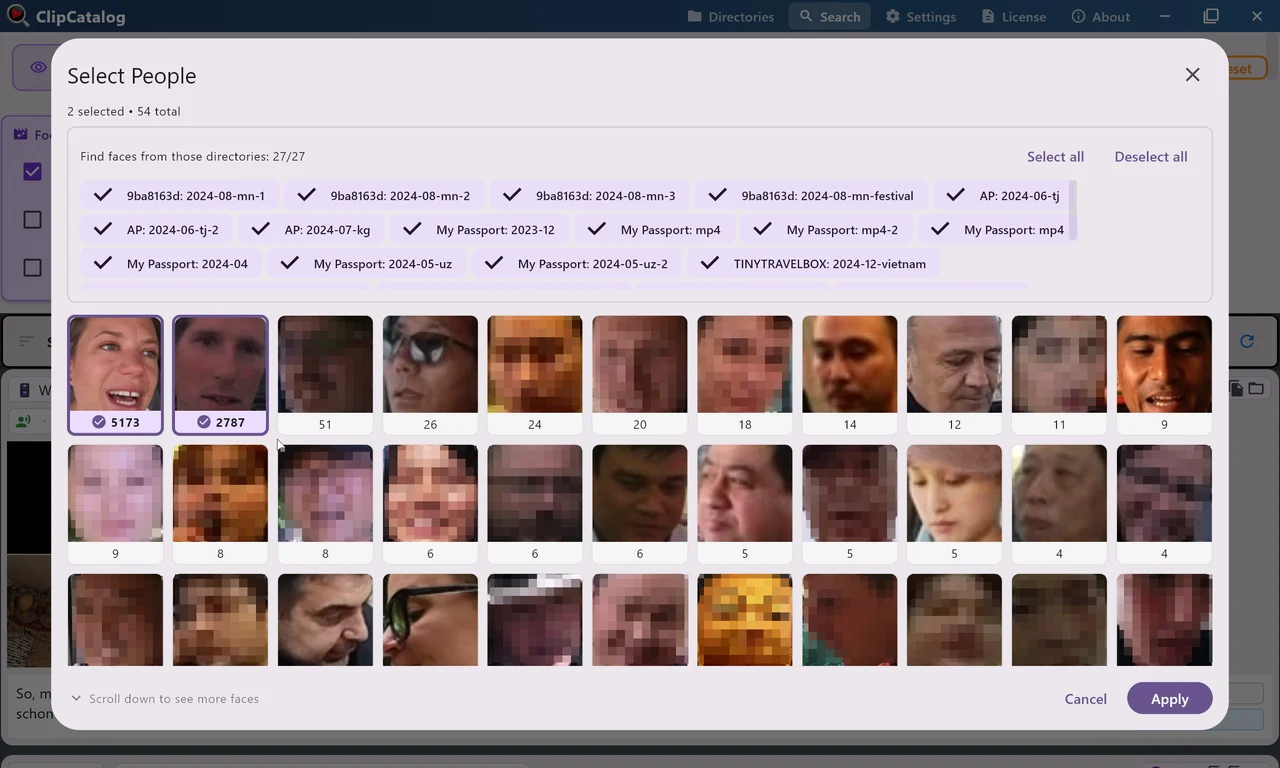
* Some faces are pixelated for privacy.
Real-world face-search use cases
These are the situations where face search saves the most time: when the same people appear again and again across years of footage, recurring shoots, or large archives. Combine it with AI video tagging to filter by scene and action alongside who's on screen.
Find every video of your child growing up
Find all the clips of your daughter when she was 3, or pull together every holiday video with grandma — across phones, cameras, external drives, and old backups that your phone's photo library doesn't know about.
Pull every guest appearance
Recurring guests and collaborators show up across episodes and shoots. Select their face once and pull every appearance across project folders and drives.
Search interview archives by person
Filter by one subject's face, then combine it with transcript search to find the exact moments they said what you remember.
Find important people in event footage
Weddings, events, and documentaries produce hours of material. Face search helps you find every clip of the couple, guest, speaker, or subject without scrubbing by hand.
Keep face search local and under your control
If you are using face search for family archives, unreleased footage, client projects, or anything sensitive, local processing and explicit opt-in matter.
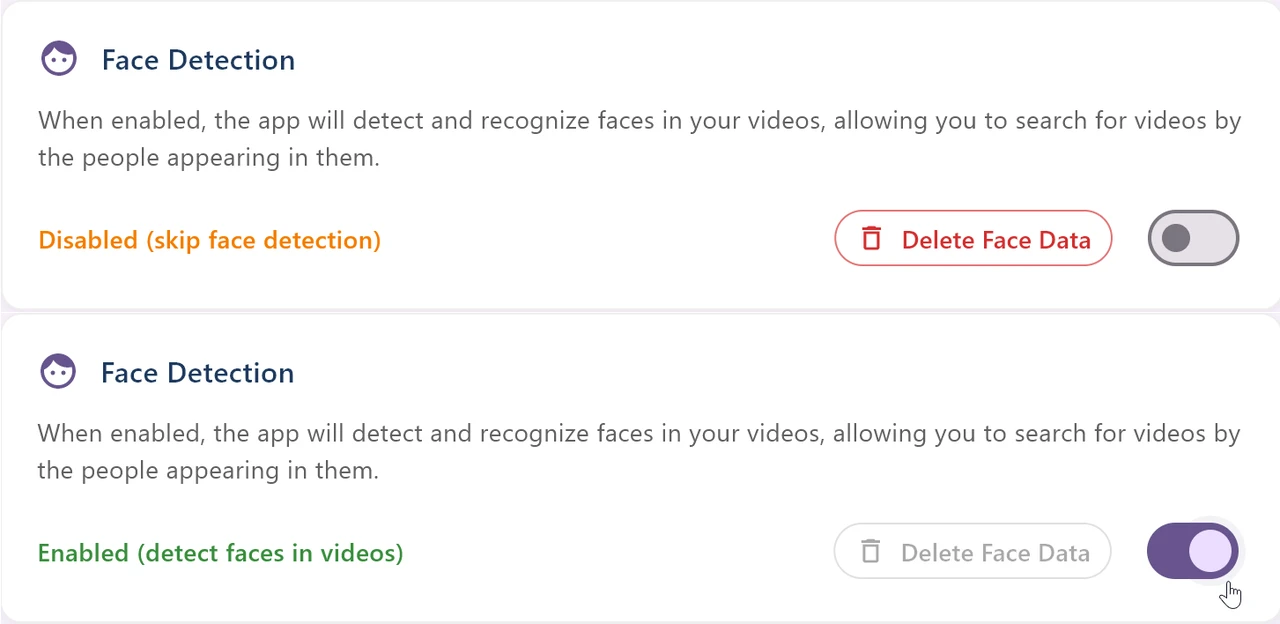
Face search stays opt-in. You can enable it, turn it off, or delete face data later.
Face detection starts only if you enable it deliberately.
Videos and face data stay on your own hardware instead of being sent to a remote face API.
If your situation changes, you can clear detections, groups, and the face index from Settings.
What to expect from face search
The goal is to get you to the right clips fast, not to guarantee perfect biometric identity in every difficult shot.
Distant, blurry, heavily shadowed, or partially hidden faces can reduce reliability.
Once indexed, person search works across years of footage, multiple projects, and disconnected archive drives.
Face search gets even better when you add transcript words, dates, folders, resolution, or AI tags.
Combine face search with the rest of ClipCatalog
See the broader face recognition workflow, practical limitations, and policy details.
Find clips where a specific person appears and a specific word was spoken.
Keep person search useful across archive drives, even when a drive is not plugged in.
Understand the local-only privacy model behind face search and the rest of the app.
Related guides
Find B-roll by what's on screen
You need a four-second shot of a sunset, a crowd, or a coffee cup — and you know you have it somewhere. ClipCatalog runs AI tagging on every clip locally; stack AI tags with Match-All / Match-Any to pull matching B-roll from your entire library.
Organize footage across drives and NAS
Internal SSDs, external drives, NAS shares — one library catalogs them all. Search clips even when a drive is unplugged.
Search a TB-scale video library
Past a few terabytes, scrolling stops working. Combine tag, transcript, face, and metadata filters into one query and drop thousands of clips down to dozens — across every drive, with no per-minute fees.
Relevant comparisons
If you are evaluating this workflow against other tools, start with these side-by-side pages.
Frequently asked questions
Yes. Start from a clip that already contains the person you want, then use the face workflow to find more videos with the same discovered people across your indexed library.
Yes. After selecting multiple people, switch the matching mode to All so the results only show clips where both selected people appear together.
Face search works best on clear, front-facing shots with good lighting. Distant, profile, heavily shadowed, or partially hidden faces can reduce match quality. Because matching uses many sample frames per video — not just one — you'll usually still find clips where the same person appears under similar conditions.
Yes. Face data is stored in your local ClipCatalog database alongside the rest of the index. Person searches keep returning matches from disconnected archive drives — those clips are simply marked as offline. Reconnect the drive when you want to play one back.
Yes. Person filters layer with all other ClipCatalog filters — date ranges, folders, resolution, frame rate, transcript words, AI tags, and more. Combining filters is usually how you narrow from a person showing up in many clips to the exact moment you remember.
Try it on a small archive first
Start with a small archive, enable face detection only if you want person search, and test it on footage where the same people appear repeatedly.
Try ClipCatalog free — up to 500 videos
No account required. Your footage stays on your computer.
License terms and installer availability