
Face recognition for searchable video libraries
ClipCatalog detects faces in your videos, groups recurring people, and turns them into reusable person filters across your library. This page covers the broader capability behind person-based discovery across projects, archive drives, and long-running footage collections.
Looking for a step-by-step walkthrough? See how to find a person in your videos →
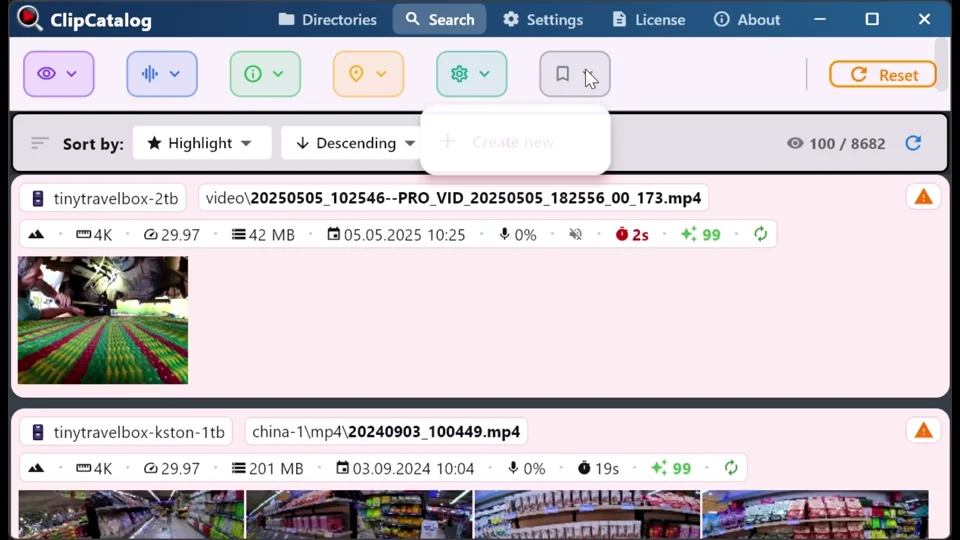
Group recurring people across a library
ClipCatalog turns repeated face detections into reusable person groups, so the same guest, subject, collaborator, or family member becomes a search dimension instead of a memory problem.
Keep face processing local and controllable
Face detection, embeddings, and grouping run on your computer. Nothing is uploaded, and the resulting face embeddings and names are stored in your encrypted local database.
How person-based discovery works in ClipCatalog
ClipCatalog uses on-device AI models to detect faces and compute embeddings, then compares them locally to group recurring people. The result is a reusable person filter that helps you revisit the same subject across an archive.
Enable face detection
Toggle face detection on in Settings. A confirmation dialog explains the feature and its implications before enabling it.
Faces are detected & grouped
During processing, ClipCatalog detects faces using YuNet and computes embeddings with SFace — both running locally with ONNX Runtime. Similar faces are clustered into person groups.
Filter by person across the archive
Select one or more people in the search panel to see matching clips across your indexed library. If you select multiple people, switch All or Any matching and combine with tags, transcripts, dates, and other filters.
Video face recognition software for Windows
ClipCatalog is video face recognition software — a desktop app, not a web service or a browser extension. It runs on Windows 10 and 11, processes your footage entirely on your machine, and uses your GPU when one is available.
Most video facial recognition software falls into two categories: cloud APIs that charge per minute of footage, or research libraries that need a developer to set up. ClipCatalog is neither: it installs like any other Windows app, indexes your existing folders, and lets non-developers run face search across hundreds of hours of video without writing a line of code or paying per call.
Every stage runs locally on your Windows machine. No frames, no faces, no embeddings ever leave your computer.
Watch the full workflow
See exactly how to find a specific person across your library, step by step.
Open the walkthrough →Archive-scale workflows
Reuse person groups in family archives
In large family archives, the same people show up across holidays, birthdays, and trips for years. Grouping recurring faces turns those appearances into a reusable retrieval workflow instead of a one-off search.
Search long-running interview archives by subject
Running a long-form interview series or documentary archive? Filter by a guest's face to pull appearances across seasons, then combine it with transcript search to find the exact moments they said what you remember.
Review event footage by person
Large events produce hundreds of clips with the same core people appearing again and again. Person filters help you narrow from the whole event archive to the people that matter for the edit.
What to expect from face recognition
Grouping, not perfect ID
Face recognition groups similar-looking faces so you can find clips by person. It uses k-NN voting with thresholds and margins to reduce false matches, and caps embeddings per person to avoid bias from overrepresented faces. Occasional mis-groups can happen with blurry, partial, or heavily obscured faces.
Works from thumbnails
Face detection runs on sampled frames (thumbnails), not every single frame of video. This keeps processing practical for large libraries while still catching the most visible face appearances. Very brief on-screen moments may not be detected.
If face detection is disabled
When Face Detection is off, the “Footage type” filter won’t be available, and Highlight Score uses fewer signals — so it may be less accurate. You can re-enable Face Detection in Settings at any time. Learn about search filters →
When and how you may use face recognition
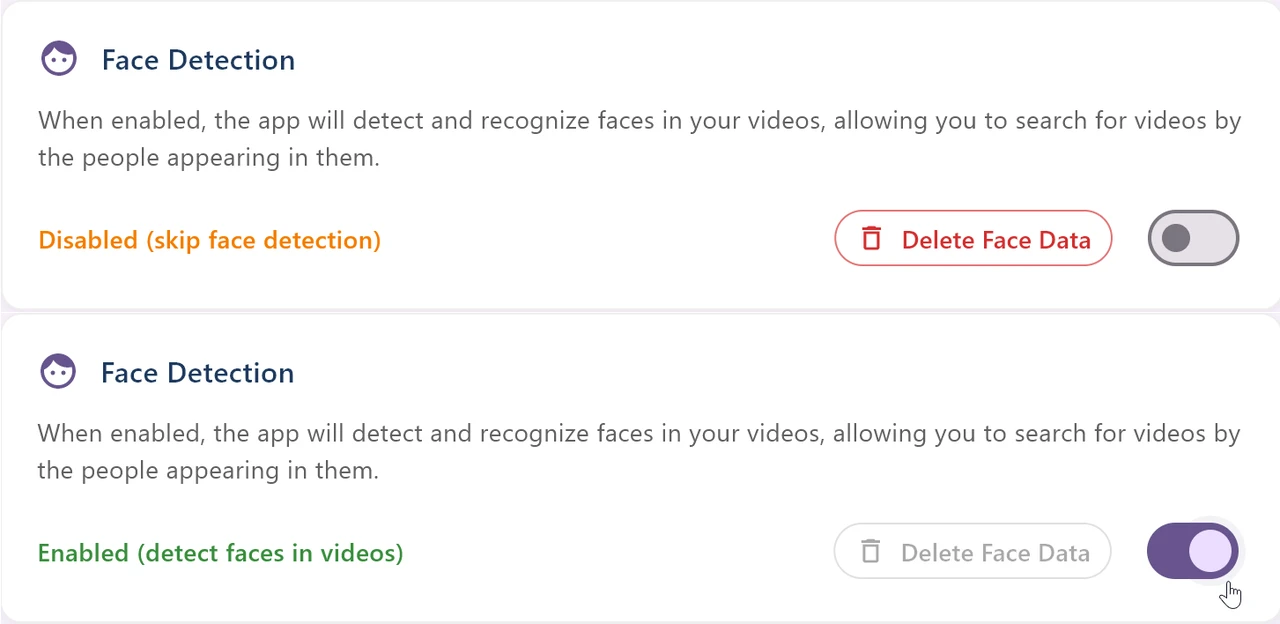
Face recognition in ClipCatalog is designed to be transparent and fully under your control. Before enabling it, the app shows a confirmation dialog with the following statement:
Settings view showing face detection before and after enabling it. Face search stays opt-in, and you can turn it off or delete face data later.
"Analyze faces in my videos locally to group similar faces so I can find videos with the same person.
This may be considered biometric data and can be regulated in some countries.
I am responsible for using this feature in compliance with applicable laws.
I can turn it off at any time and clear existing face data."
Even more powerful together
Face recognition is one search dimension in ClipCatalog. Its real value is combining person filters with the rest of your archive metadata to go from thousands of clips to exactly what you need.
Find clips by what was said — perfect for interviews, sound bites, and voiceover takes.
Search by what's on screen — scenes, objects, and actions, tagged automatically.
Face data persists even when drives are unplugged — reconnect and search again.
Layer face filters with date, folder, resolution, frame rate, duration, and more.
Relevant comparisons
If you are evaluating this workflow against other tools, start with these side-by-side pages.
Frequently asked questions
No. Face detection, embedding, and grouping all happen locally on your computer. Your footage and face data never leave your machine.
ClipCatalog uses a smart matching algorithm with k-NN voting, score thresholds, and per-person caps to reduce false matches and avoid bias from overrepresented faces. Accuracy is highest on clear, well-lit, front-facing shots; expect occasional mis-groupings on distant faces, heavy shadows, motion blur, or extreme angles.
Face detection uses YuNet — a lightweight, open detector — and face embeddings are computed with SFace. Both models run locally with ONNX Runtime and are downloaded once during setup. No proprietary cloud APIs, and nothing is downloaded from third-party services while you process video.
Face embeddings can use your GPU via DirectML when available, and fall back to CPU automatically otherwise — slower, but it still works on every supported Windows machine.
In many jurisdictions, face embeddings and facial geometry are classified as biometric data and may be subject to privacy regulations such as GDPR (EU), BIPA (Illinois, US), or similar laws. ClipCatalog keeps all face data on your machine, makes the feature opt-in, and lets you delete every face crop, embedding, and all grouped person data at any time. You're responsible for ensuring your use complies with the laws that apply to you.
Yes. From Settings you can delete all detected faces and person groups in one click. Videos will need to be re-processed if you enable face detection again later.
Yes. Alongside grouping recurring people, ClipCatalog adds AI scene and object tags, a searchable transcript of spoken words, and footage-type filters — so you can search who appears, what’s on screen, and what’s said in one local app. Nothing is uploaded.
Try it with one folder
The best way to evaluate the broader face-recognition workflow is to enable it in Settings, process a single project or archive folder, and see how quickly one useful clip turns into a reusable person filter.
Try ClipCatalog free — up to 500 videos
No account required. Your footage stays on your computer.
License terms and installer availability