
Private local video search without cloud uploads
ClipCatalog gives you private local video search for folders, external drives, and archive volumes without forcing your footage into a cloud platform. Search sensitive family archives, client work, and unreleased footage on your Windows PC while keeping full control over where the files and search data live.
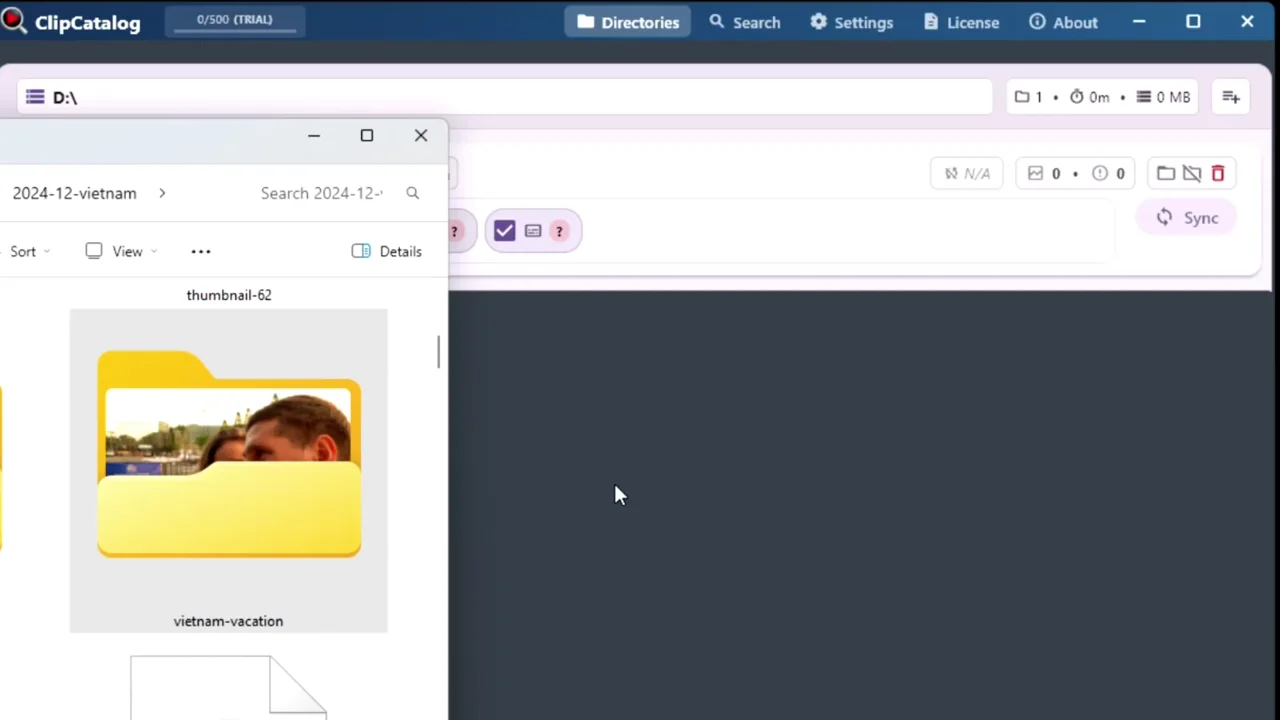
ClipCatalog indexes and searches footage locally on your PC.
Keep footage on your own drives
Your video files are never uploaded, streamed, or transferred to a remote processing pipeline. Original footage stays on your own storage.
Search local archives without forced cloud sync
AI tagging, transcription, and face-based discovery run on your hardware, so you can keep the workflow private without giving up serious search features.
Built for sensitive footage and large libraries
After setup, indexing and search work locally on Windows. That makes ClipCatalog a better fit for client work, family archives, and large libraries spread across archive drives.
What you can do locally with ClipCatalog
Privacy-first does not mean stripped-down. These core retrieval workflows run on your own machine.
Video search
Search by scene, objects, and visual concepts generated locally from your footage.
Transcript search
Find clips by spoken words and spoken language without uploading audio.
Face recognition
Find the same person across family videos, interviews, or archive footage - face data stays in your encrypted local index.
External drives
Keep external SSDs and archive drives in one searchable library, even when a drive is disconnected.
Why choose local-first video software?
If you are comparing privacy-first tools for local storage, the decision is not just about uploads. It is about whether you can keep footage on your own drives and still get serious search, filtering, and archive workflows. ClipCatalog is designed for that exact trade-off.
| Concern | Cloud-based tools | ClipCatalog (local-first) |
|---|---|---|
| Video upload | Required - footage leaves your device | None - original files stay on your drives |
| AI training exposure | May be permitted by service terms | None - pre-trained models stay separate from your footage |
| Offline workflow | Often limited or internet-dependent | Full search workflow after setup |
| Sensitive footage handling | A third-party processor sits in the workflow | Processing stays on your hardware |
| Storage and bandwidth cost | Uploads, storage, and transfer costs can scale with library size | Use your own drives - no upload pipeline |
| User control | Retention, diagnostics, and processing policies live with the vendor | Local catalog, opt-in diagnostics, and removable face data |
Relevant comparisons
If you are evaluating this workflow against other tools, start with these side-by-side pages.
Need a broader buyer's shortlist?
See the roundup that compares ClipCatalog, Peakto, NeoFinder, Mylio Photos, and Adobe Bridge for local storage, offline use, privacy-sensitive workflows, and video search depth.
Why local-first matters for real video libraries
Privacy-first is not an abstract philosophy when you are handling family memories, client footage, interviews, or unreleased projects. The more personal or sensitive the library, the more valuable local processing becomes.
Family archives stay private - even with face search
One parent told us the deciding factor was being able to run face-based search across 6,000 videos of his kids without uploading family footage anywhere. That is exactly the kind of problem local-first tools solve well.
Client and NDA footage stays under your control
Wedding footage, corporate projects, interviews, and pre-release material can be indexed without creating a server-side copy. There is no remote processing pipeline standing between you and sensitive footage.
You can keep working without internet
After setup, ClipCatalog keeps indexing and searching locally. That matters when you work on location, carry archive drives, or simply do not want a cloud service between you and your footage.
Large libraries do not need massive uploads
Terabytes of footage on external SSDs and archive drives can be indexed where they already live. You avoid upload queues, recurring storage costs, and bandwidth bottlenecks.
What stays local, and what still needs internet
ClipCatalog is transparent about which parts stay on your PC and which parts require a connection. The core library workflow is local by default.
| Activity | Local or Online | Details |
|---|---|---|
| Video processing and indexing | 100% local | Tags, transcripts, faces, thumbnails, and search data stay on your PC |
| Searching your library | 100% local | All queries run against your local encrypted database |
| Catalog storage | 100% local | SQLCipher-encrypted database on your hard drive |
| AI model download | One-time download | Models download once during setup, then run locally |
| License validation | Periodic check | Brief check-in; your library stays usable between checks |
| Error reporting / telemetry | Opt-in only | Disabled unless you opt in. Never includes video content or file paths |
| App updates | Optional check | Auto-checks for updates; you choose when to install |
How ClipCatalog keeps the workflow local
ClipCatalog is a desktop video library and retrieval system, not a browser tab backed by remote processing. The core search workflow stays on your machine.
AI analysis runs on your PC
AI tagging (RAM++), transcription (whisper.cpp), and face detection (YuNet + SFace) each run as local services bound to 127.0.0.1 for on-device inference. You choose which CPU or GPU runs each task, with built-in benchmarking to find the fastest device on your machine.
Catalog data stays encrypted on disk
AI tag names, transcripts, face embeddings, and search data are stored in a SQLCipher-encrypted database on your local drive; preview thumbnails and face images are cached alongside it in your app folder. The encryption key lives in your OS secure storage, not on any server.
Local backups protect your work
A rolling backup service snapshots your catalog database on your own machine, at a pace set by its size: roughly hourly under 1 GB, every 3 hours from 1–4 GB, every 6 hours above that. Those are targets rather than guarantees: a cycle waits for a running sync, for free disk space, or for a large catalog's indexing to settle. If something goes wrong, you can recover without contacting any server.
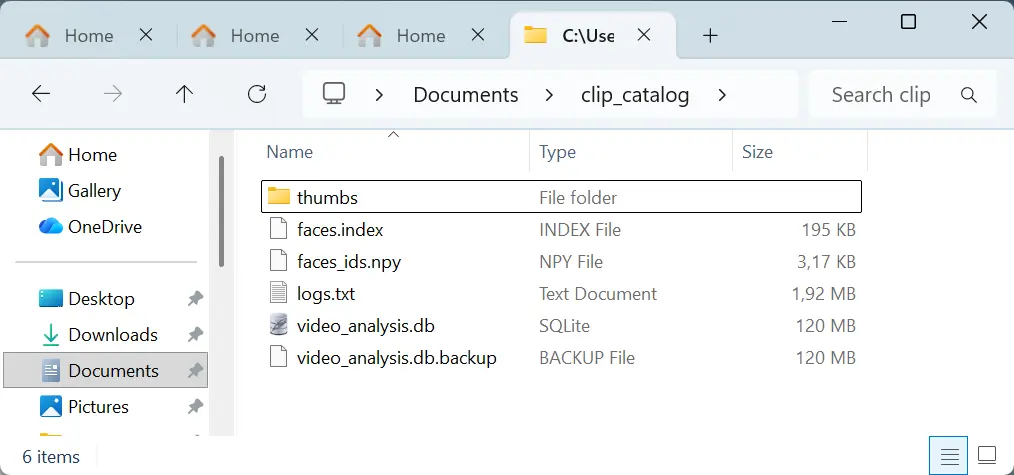
Proof that your catalog stays under your control
Privacy is not just 'no cloud uploads.' ClipCatalog also protects the catalog data it generates locally.
Your catalog database is encrypted with a random 256-bit key
Encryption key stored in Windows DPAPI — not in a plain file
Recover your database key after reinstalls using your license key
Automatic rolling backups of your catalog stay on your drive
Face detection requires your explicit confirmation before it runs — never enabled silently
Delete all stored face embeddings, images, and index data from settings at any time
Enable or disable AI tagging, transcription, and face processing independently for each folder
Settings show the exact storage footprint — database, thumbnails, face images, and face index — so you always know what is stored
Diagnostics are opt-in - never bundled with your footage
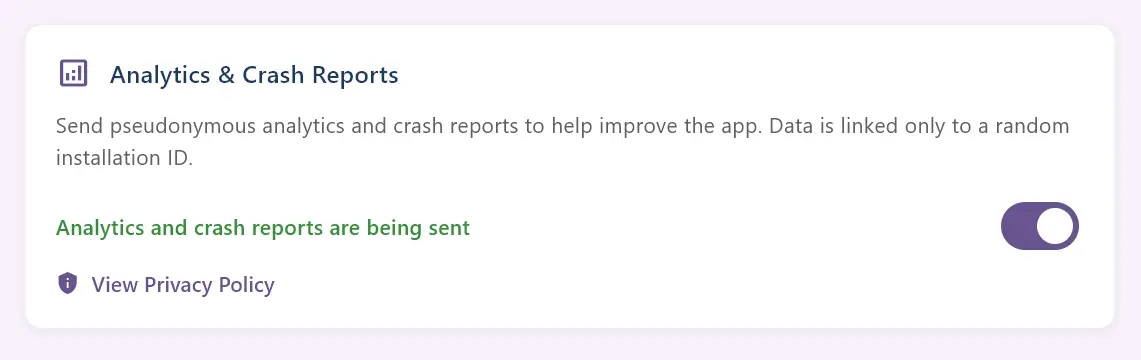
On first launch, ClipCatalog asks if you'd like to send anonymous diagnostics - it is off unless you say yes. If you opt in, only application-level data is sent (never video content, file paths, transcripts, or thumbnails). Change your mind? Toggle it off in Settings and queued data is deleted instantly. Full details in our Privacy Policy.
Who benefits most from private local video software
Family & travel archivists
Offline face search for footage you actually care about.
If you have thousands of family videos across years and drives, you can find the same person again without sending your private footage to a third-party service.
YouTubers & vloggers
Keep unreleased footage off other people's servers.
Index your footage library locally and search by topic, dialogue, or scene without giving a platform early access to unpublished material.
Filmmakers & editors
NDA-safe by architecture, not by policy alone.
Embargoed footage, client projects, and interview archives stay in your own workflow. Local processing means no extra data handler in the chain.
Frequently asked questions
Does ClipCatalog upload my videos to the cloud?
No. Your video files never leave your computer. AI tagging, transcript generation, and face detection all run locally on your hardware. ClipCatalog does not upload, stream, or transfer your footage anywhere for core processing.
Are my videos used to train AI models?
No. ClipCatalog uses pre-trained AI models that run locally on your machine. Your footage is never sent to a server for AI analysis, and it is never used to train or improve any AI model. The models are stored locally (downloaded on first run) and work offline after setup.
Does ClipCatalog need internet to process or search videos?
Only for initial model download, updates, and periodic license checks. Day-to-day indexing, search, transcript processing, and face discovery work locally on your PC.
What data does ClipCatalog collect?
By default, crash reports and analytics are off. On first launch, ClipCatalog asks if you'd like to enable error reporting and telemetry — it's disabled unless you say yes. If you enable it, only application diagnostics are sent — never video content, thumbnails, or transcripts. You can change your decision at any time in Settings.
Where is my catalog data stored?
On Windows, your catalog and cache normally live in %LOCALAPPDATA%\ClipCatalog. The catalog database is encrypted with SQLCipher. Thumbnails, face images, the search index and logs are separate, unencrypted local files. To see your actual location, go to Settings and choose “Open data folder…”. Downloaded AI models and tools may use %PROGRAMDATA%\ClipCatalog when that folder is available and writable, or the per-user data folder. The download screen shows the location used on your PC. Your original videos stay where they are. Installing ClipCatalog on another drive does not move the models or catalog data.
Can I use face recognition without cloud uploads?
Yes. Face detection and grouping run locally on your PC, and the resulting face embeddings and names stay in your encrypted local catalog. Face processing can be turned off, and stored face data can be deleted.
What happens to my catalog if I uninstall ClipCatalog?
Your original video files are never modified. The catalog database, thumbnails, and face data are stored separately on your machine and can be deleted. ClipCatalog does not keep your video content on our servers.
Is the ClipCatalog database encrypted?
Yes. ClipCatalog stores its catalog — transcripts, tags, face embeddings and names, and the search index — in a SQLCipher-encrypted SQLite database with a random 256-bit key held in your OS secure storage (Windows DPAPI). Preview thumbnails, face crop images and the local vector index are cached on your drive but are not themselves encrypted, and none of it ever leaves your computer. On paid licenses the database key can be escrowed (encrypted with your license key) so you can recover your catalog after a reinstall or new PC. Tip: if you also want those cached files protected, turn on Windows device encryption (BitLocker); it covers the caches and your original video files as well.
Before you choose ClipCatalog
- On first startup, the app downloads AI models and supporting files.
- Your CPU and GPU do the AI work, so indexing speed depends on your hardware.
- After setup, processing and search happen locally on your PC.
- Your original video files are never modified, moved, or uploaded.
- Windows only — available on Windows 10 and 11.
Try it on a private library
The quickest way to judge the local-first claim is to install the trial, index a few folders, and test the workflows that normally push people into the cloud - like transcript search or face-based discovery.
Try ClipCatalog free — up to 500 videos
No account required. Your footage stays on your computer.
License terms and installer availability