
Video search for local folders — built for real footage libraries
Point ClipCatalog at any folder on your PC or external drive. It builds a fast, searchable catalog — locally — so you can find clips by what’s in the shot (AI tags), what was said (transcripts), who appears (optional face recognition), and classic production metadata. No cloud uploads. No manual labeling. Just search and find.
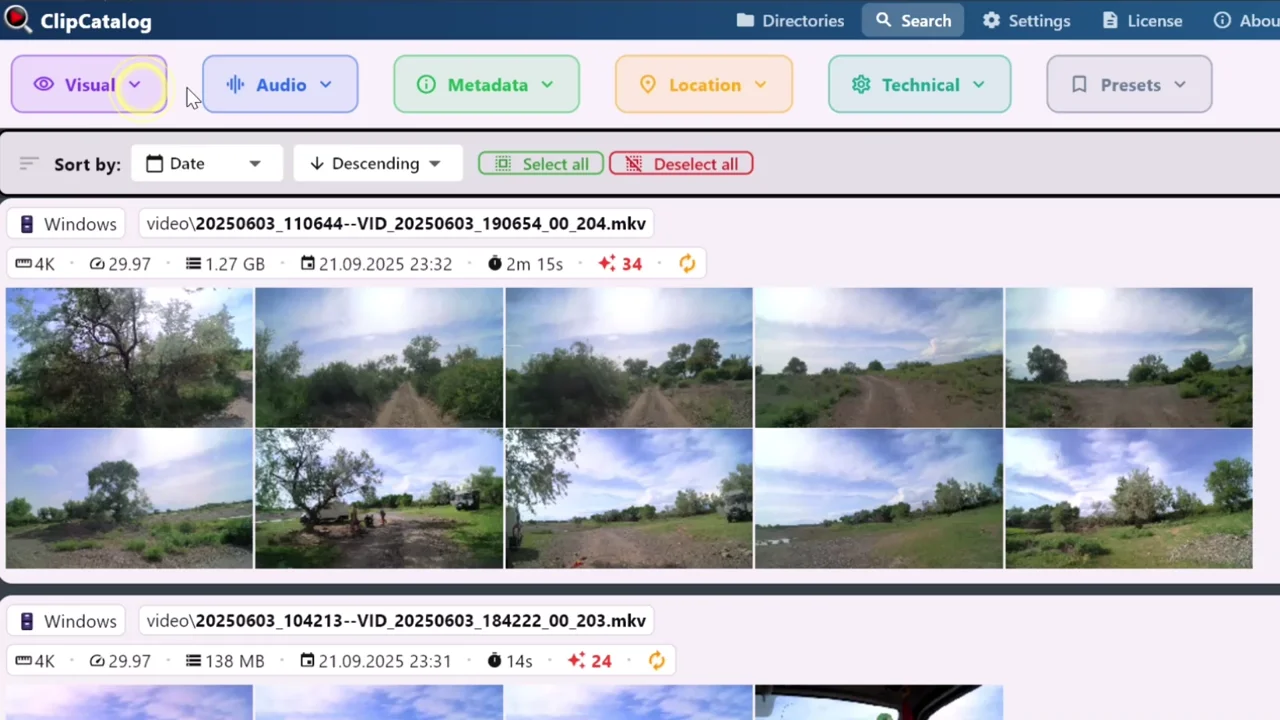
Stop guessing which clip is GH010234.MP4. Search by what’s on screen, what was said, or who appears — ClipCatalog makes your footage searchable by meaning.
Processing happens once per clip. After that, searches feel instant because results come from your local library — not from re-scanning files every time.
Video files are huge and personal. ClipCatalog processes everything on your computer so your footage is never uploaded to a cloud service just to become searchable.
Three ways to search your footage
Most video search tools only work with file names and dates. ClipCatalog goes much deeper — it understands what’s on screen, what was said, and who appears, so you can search the way you actually remember things.
Search by what’s on screen
ClipCatalog’s AI watches every clip and adds AI tags for scenes, objects, and actions — cars, beaches, interviews, celebrations, you name it. Type what you’re looking for and matching clips surface instantly. No manual labeling required.
Whether you’re a vlogger digging through old shoots for a perfect sunset shot or a filmmaker scanning raw footage for an interview close-up, AI tags replace the guesswork of browsing folders.
Learn more about AI tags →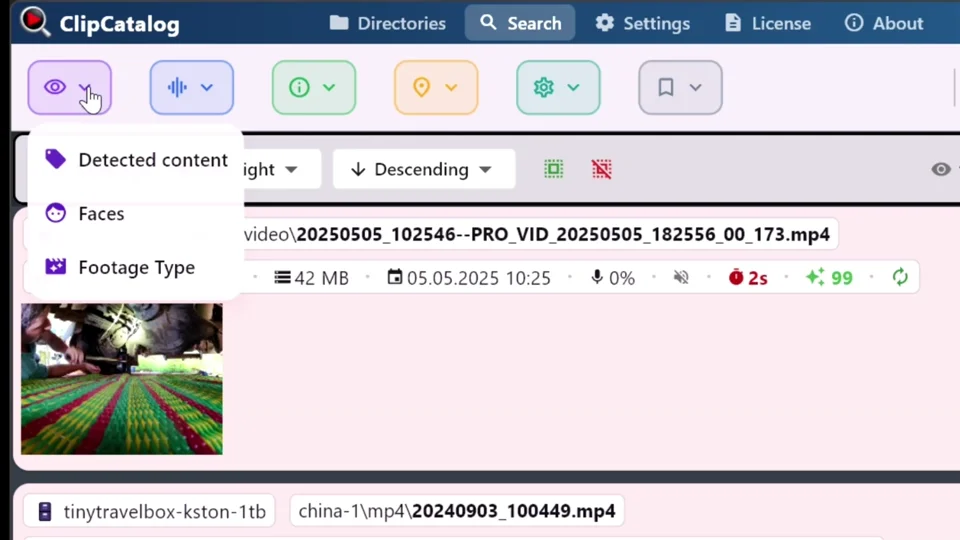
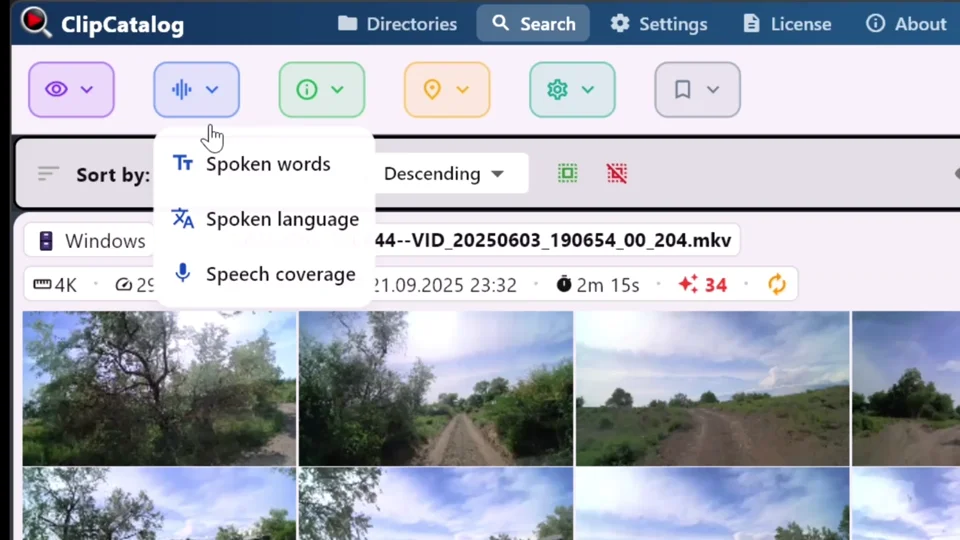
Search by what was said
Every word spoken in your footage becomes searchable. ClipCatalog transcribes audio locally using state-of-the-art speech recognition, so you can type a word and jump straight to the moment — perfect for pulling sound bites, interview quotes, or voiceover takes.
Think of it as Ctrl+F for every video you’ve ever recorded. Instead of scrubbing through hours of footage, you search for the word and ClipCatalog shows you exactly which clips contain it.
Learn more about transcript search →Search by who appears
Face recognition groups appearances automatically across your entire library. Need every clip featuring a guest, collaborator, or family member? Select their face and get every matching video — no scrubbing through timelines.
Great for vloggers working with recurring guests, wedding videographers with large events, or families organizing decades of home video.
Learn more about face recognition →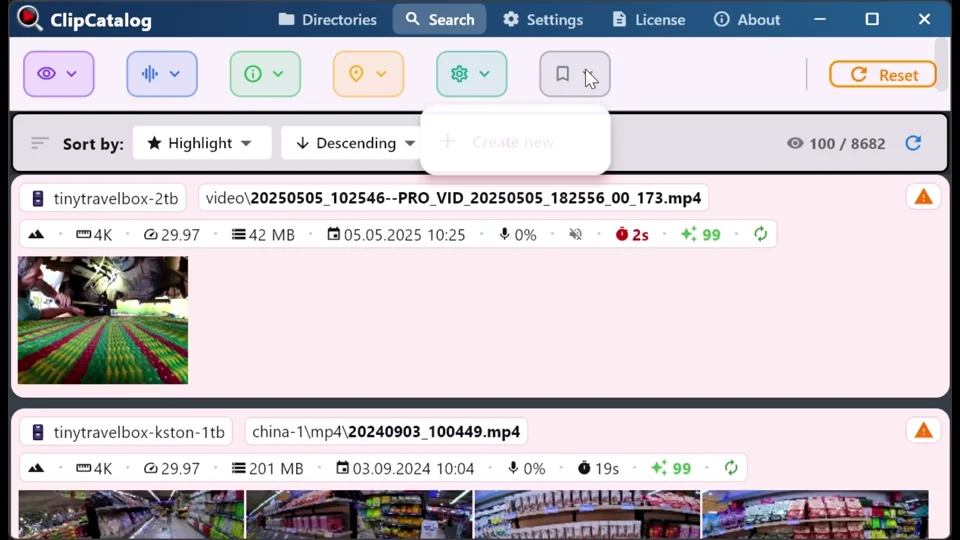
How ClipCatalog video search works
ClipCatalog is designed for real-world libraries: project dumps, traveling SSDs, camera roll folders, and years of archive footage. It processes your clips locally and stores everything in a fast, searchable library — so searching feels instant later.
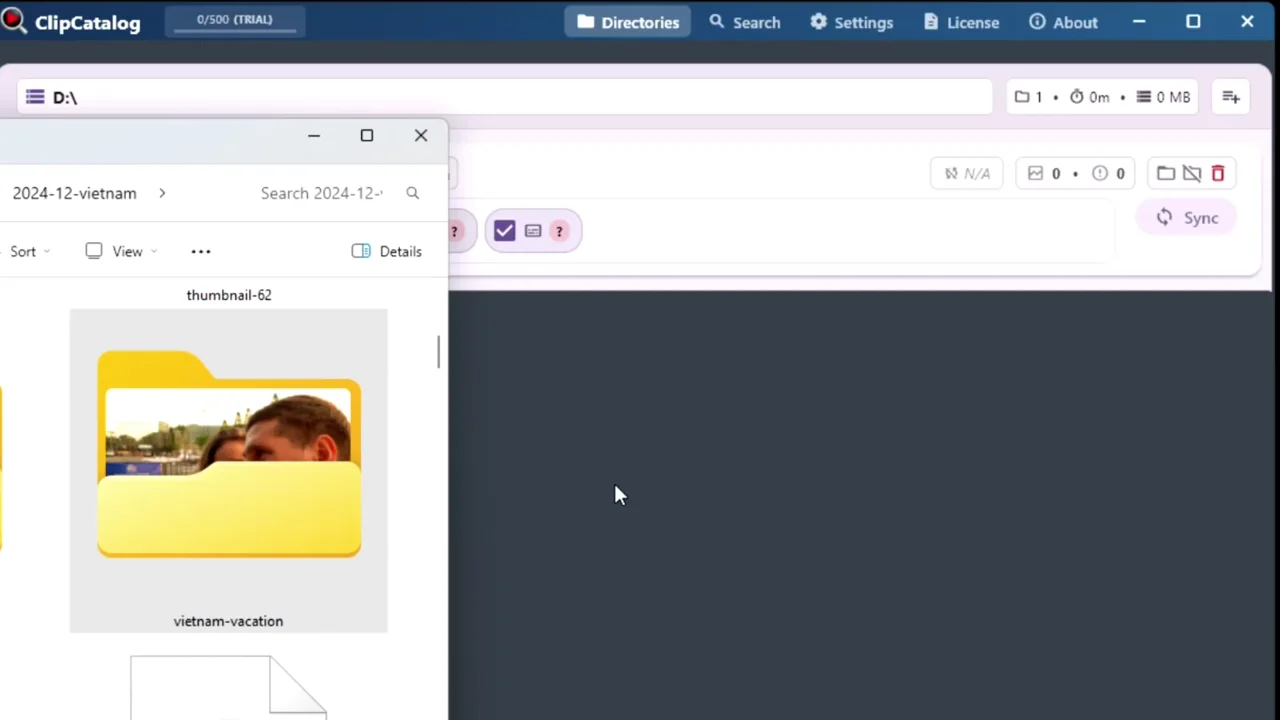
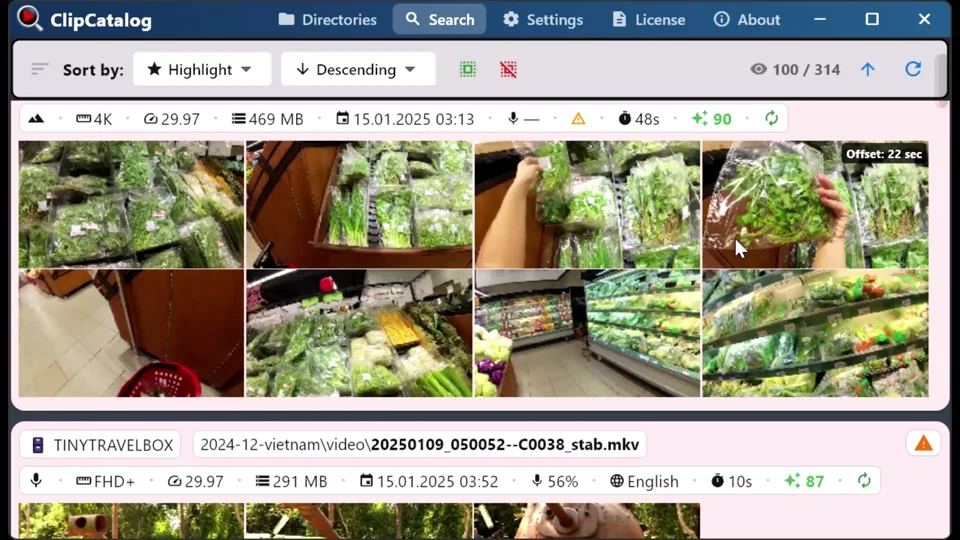
Point ClipCatalog at any folder. It processes every clip locally — generating thumbnails, AI tags, speech transcripts, and optional face data.
Add one folder or many. ClipCatalog is built to handle big archives and external drives that get unplugged.
ClipCatalog generates thumbnails, extracts metadata, detects content on screen, builds transcripts, and (optionally) runs face recognition — all on your PC. GPU acceleration speeds things up.
Combine filters, preview results, and pull selects without rewatching hours. Save presets for your go-to “b-roll finder” searches.
More than keywords: advanced filters
When your library grows, “search” becomes a combination of content + context. ClipCatalog lets you layer AI-powered search with practical production metadata to narrow thousands of clips down to exactly what you need.
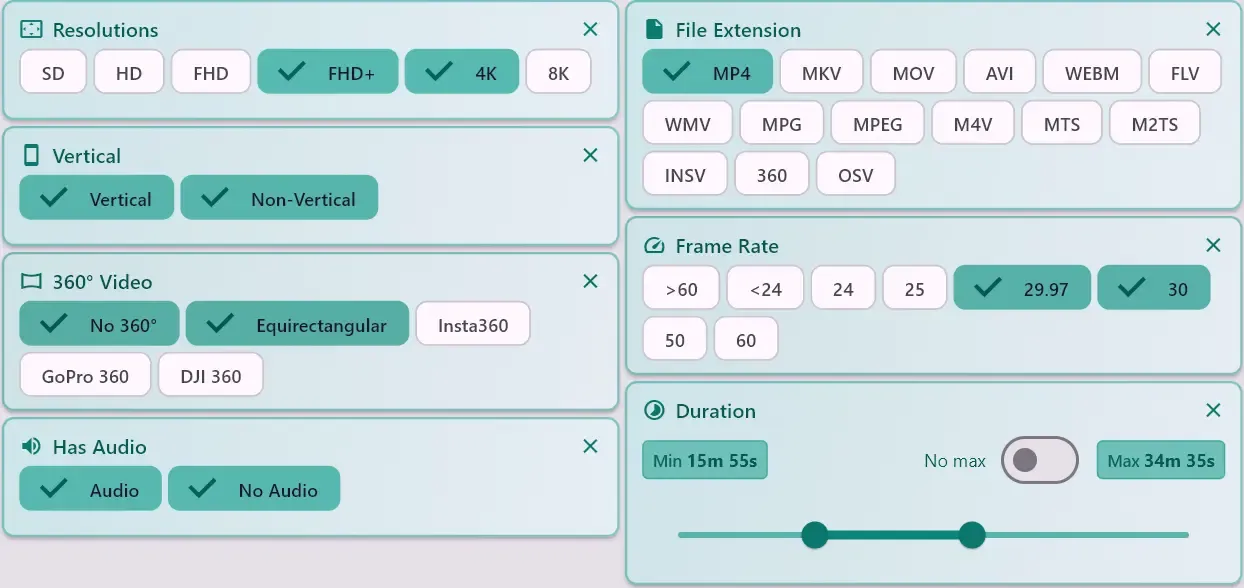
Technical filters
Filter by recording date, clip duration, resolution, frame rate, horizontal vs. vertical, audio/no-audio, camera name, and more. Narrow thousands of clips down to exactly what fits your project specs.
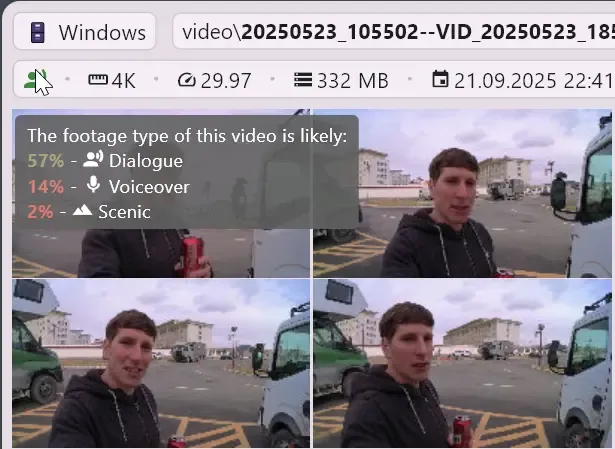
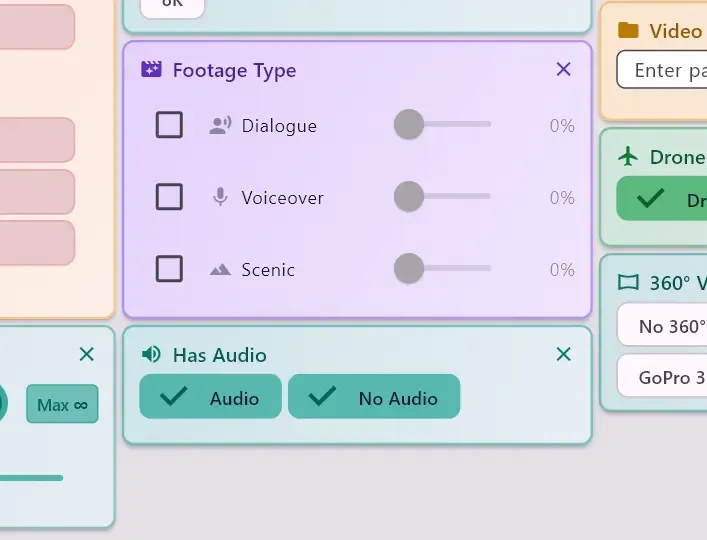
Smart footage type
ClipCatalog estimates how much of each clip is dialogue, voiceover or scenic from its transcript, the faces on screen and how much the picture changes. Filter by footage type to find the kind of shot you need, with no manual labeling. A clip gets its footage type once face detection, AI tagging and, for clips with sound, transcription have processed it.
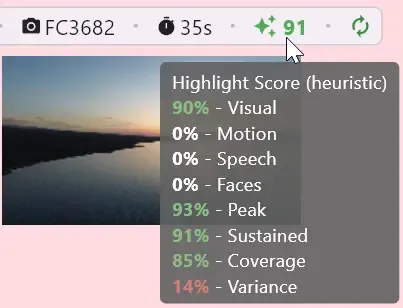
Highlight Score
A smart heuristic ranks your clips by how engaging they are — so the most interesting footage floats to the top. Spend less time previewing and more time editing the good stuff.
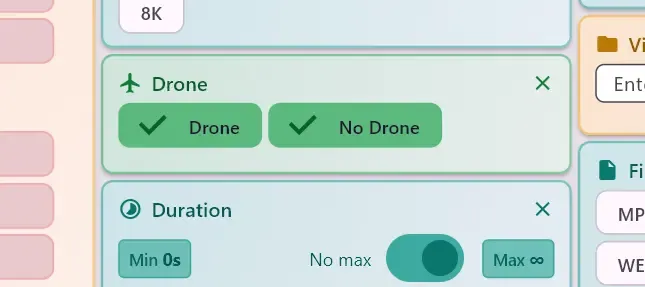
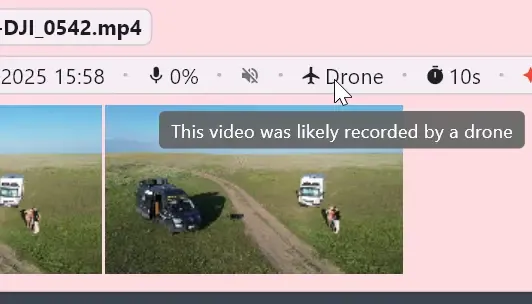
Drone footage detection
Many drones label their own footage. ClipCatalog checks each clip for the drone model and flight data written into the file, and the Drone filter shows the clips where it recognizes them. No manual labeling. Want aerial-looking shots from any camera, or drone clips exported from an editing app? Describe them in natural-language search.
How each filter decides →How each filter decides
Most filters read facts straight from the video file, such as resolution, frame rate, duration, orientation and audio. A few depend on what the camera or drone wrote into the file, or on an estimate. Here is what those read, and what they cannot know.
- Drone
- Reads what a drone writes into its own files, such as its maker and model or its flight and gimbal data. The Drone chip shows the clips where ClipCatalog recognizes that information. The filter never looks at the picture, so aerial-looking shots from other cameras are not included, and drone clips exported from an editing app usually lose the metadata it needs. What each drone model writes varies, so some models may not be recognized. To find shots by how they look, use natural-language search.
- Cameras
- Lists the camera model each clip names in its metadata, as the device wrote it. Some devices write a technical code rather than the product name. Two bodies of the same model share one name, so the filter cannot tell them apart. Exports from editing apps often lose the camera model.
- 360° Video
- Native 360° files are recognized by their file type: .insv, .360 and .osv. A stitched equirectangular clip is recognized from its 360° metadata, or from a combination of clues such as a 2:1 frame and known 360° software. An export that has lost all of these is treated as a regular video.
- Date Range
- Uses the recording date the camera wrote into the file. Exported or re-encoded clips may carry the export date instead, or no date at all; ClipCatalog then falls back to other date fields and, as a last resort, the file's modified time, which can be the day the clip was exported or downloaded. Some cameras store the time in UTC without marking it, so their clips can show a time a few hours off, and near midnight the previous or next day. The Date Range filter goes by that date.
- Footage Type
- Estimates how much of a clip is dialogue, voiceover or scenic from three signals: speech in its transcript, faces on screen and how much the picture changes. It is an estimate, not a label. The filter needs face detection turned on, and a clip gets a footage type only once its AI tags and faces are processed. Clips with sound get one only after they are transcribed, so their folder needs transcription turned on; clips without an audio track count as scenic.
Searching by how a shot looks
Filters answer what the file itself records. To find shots by their look, such as an aerial view of a coastline or a busy street at night, describe them in natural-language search and combine it with any of these filters.
360° and action-camera video support
By default, ClipCatalog indexes and searches your 360° footage — it doesn't just list it. Native files from Insta360, GoPro, and DJI, plus equirectangular exports, run through the same AI as the rest of your library, so they surface in your searches alongside conventional clips.
With 360° processing on — the default — ClipCatalog extracts flat viewpoints from each native file (.insv from Insta360, .360 from GoPro, .osv from DJI) and from equirectangular .mp4, then runs its AI on them: AI tags, semantic embeddings, and spoken-word transcripts. So tag search, semantic search, and transcript search all work on 360° clips. Prefer to skip the heavy native formats? Turn them off and the files stay listed in your catalog, just not AI-indexed.
How 360° viewpoints are extracted
Coverage depends on the source format — and the viewpoints are always anchored on the horizon, so action directly overhead or underfoot can be missed. There's no whole-sphere guarantee.
- Equirectangular .mp4 — three undistorted 120° views per sample point: the cleanest, most complete coverage.
- Insta360 .insv · DJI — stitched from the dual-fisheye lenses into two views, front and back.
- GoPro .360 — sampled from the two raw camera streams without re-stitching, so frames are more distorted: the lowest-quality tier.
Native files are indexed and searchable by default — no export required.
One export, edited and searchable
Most 360° cameras ship free desktop software — Insta360 Studio, GoPro Player, DJI Studio — that stitches the raw camera files into a flat equirectangular .mp4. That single master drops straight into Premiere Pro, DaVinci Resolve, or Final Cut Pro, where you reframe it into ordinary flat shots and export both a 16:9 horizontal cut and a 9:16 vertical one from the same capture. It's also the format ClipCatalog indexes most completely — so the master you make for editing is the one that searches best.
Use the 360° filter to show only immersive footage or exclude it from results. ClipCatalog catalogs and searches 360° video but has no built-in 360° reframe or viewer — open clips in your own player or editor to pan around the sphere.
Real searches creators use
Here are the kinds of queries that become possible once your library is indexed. Each one would be a painful manual hunt without searchable AI tags and transcripts:
- beach
- Find b-roll that matches a memory
- birthday
- Find family moments quickly
- vertical
- Find Shorts/Reels-ready footage
- alex (face)
- Find every appearance of a person
- ALL · beach + sunset
- Tags (All)
- ANY · dog + cat
- Tags (Any)
- ALL · wedding + outdoor
- Tags (All)
- ALL · launching + month
- Transcript words (All)
- ANY · alex + jamie (face)
- Faces (Any)
From video search to your editing timeline
Finding the right clip is only half the job. ClipCatalog is built for editing workflows so you can go from search results to your editing timeline without friction.
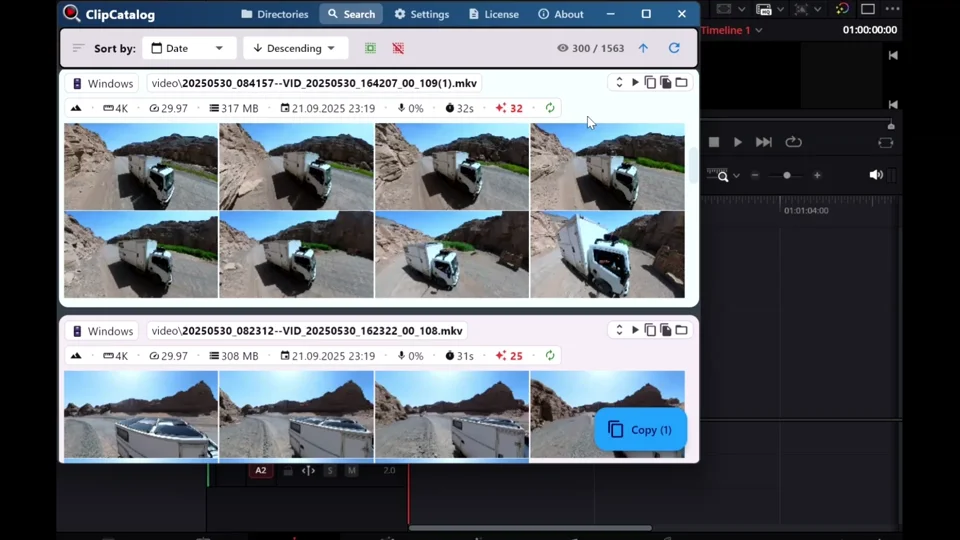
Drag & drop to your timeline
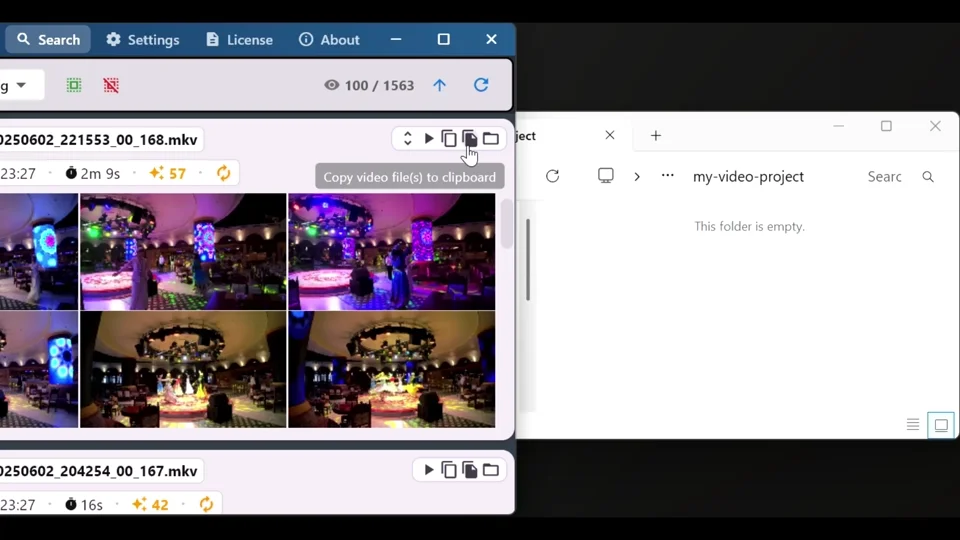
When you’ve found the clips you need, grab them from ClipCatalog and drop them right into your video editor. Multi-select is supported, so you can move entire batches at once. Drag & drop has been tested with CapCut, PowerDirector, Kdenlive, Premiere Pro, Vegas, and ShotCut. Many other editors will likely work fine too.
Or copy matches to any folder
Prefer to collect files first? Copy all matching clips to a location of your choice — great for handing off footage to collaborators or building project-specific folders.
Built-in video player
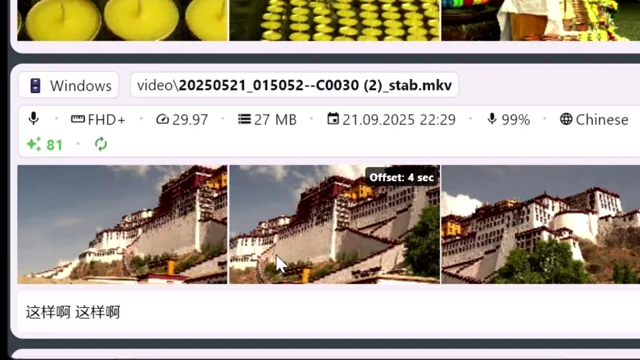
Preview clips right inside the app without switching windows. Quickly verify a shot before sending it to your editor.
Export transcripts
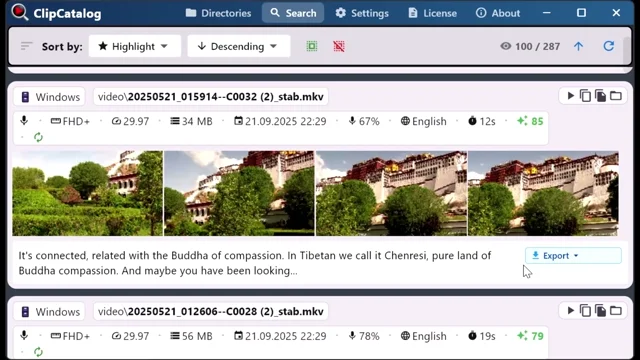
Download word-for-word captions as plain text or SRT subtitle files — ready for your editing timeline.
GPU-accelerated processing
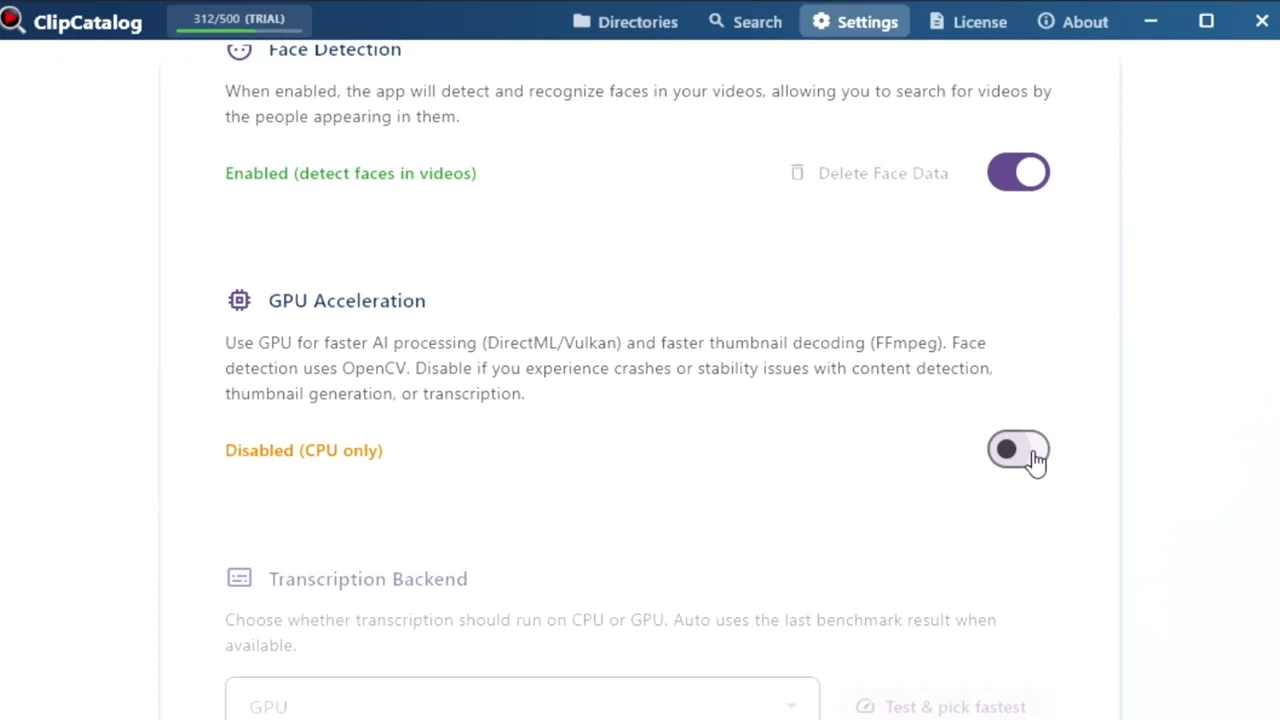
Your GPU speeds up indexing via DirectML and Vulkan. Falls back to CPU automatically on any hardware. Learn more →
Built for serious footage libraries
Whether you have a few hundred clips or terabytes of raw footage across dozens of drives, ClipCatalog handles it. Your catalog stays searchable even when drives are unplugged.
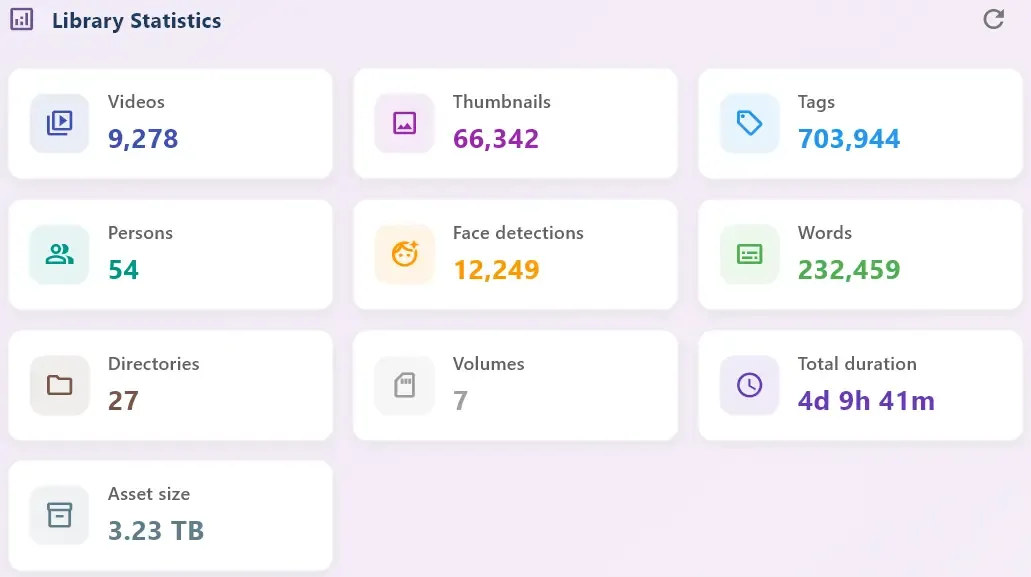
Large library support
Import many terabytes of video. Lightning-fast thumbnail browsing with smart caching keeps everything responsive, even at massive scale.
External drives & traveling SSDs
Connect external drives, SD cards, or traveling SSDs — ClipCatalog remembers them. Search and plan edits even when the drive is disconnected. Learn more →
What to expect (and what it’s not)
ClipCatalog is a powerful tool, but it’s honest about what it can and can’t do. Here are a few things worth knowing before you get started.
ClipCatalog does the heavy lifting up front: thumbnails, AI tags, transcripts, and optional faces are generated during indexing — not every time you search. After your library is processed, searches feel instant because results are already in your local library.
AI tags and transcripts are great for narrowing down clips, but accuracy can vary with motion blur, noisy audio, accents, and overlapping speech. The win is getting to “the right neighborhood” of clips quickly — then you pick the best take.
Your footage never uploads. The app downloads models on first run, and license checks happen periodically. After that, browsing and searching are local and fast. Learn about local-first privacy →
Build complex filter combinations once and save them as presets you can re-apply instantly — your “b-roll finder,” “interview puller,” or “drone-only” search, ready in one click.
Understanding video search for local files
Whether you call it video search, footage cataloging, or media asset management — the core problem is the same: you have hundreds or thousands of video files on your computer, and finding the right clip feels impossible.
Windows File Explorer can find video files by name, date, or size — but it can’t search by what’s in the video. If you named a file GH010234.MP4, good luck finding it months later. ClipCatalog adds the missing content layer: AI tags, transcripts, and face data that make videos searchable by meaning, not just metadata.
Cloud-based video search tools require uploading your footage to someone else’s server. That means slow uploads, ongoing storage costs, and giving up control of your files. ClipCatalog processes everything on your machine — your footage never leaves your computer, and there are no recurring cloud fees.
Manual labeling means watching clips, writing descriptions, and maintaining spreadsheets or folder naming conventions. With AI tagging, you point ClipCatalog at a folder and AI tags appear during processing — no naming discipline required, no per-clip effort.
ClipCatalog supports 10 languages for both the UI and AI tag names: English, German, Spanish, French, Portuguese, Japanese, Korean, Chinese, Russian, and Arabic. Your system language is detected automatically, and tag names are translated so you search in your native language.
Frequently asked questions
No. ClipCatalog is local-first: your video files stay on your computer. AI tagging, transcript generation, and optional face recognition run locally on your own hardware.
You can search by AI tags (what's on screen), transcript words (what was said), and optional face recognition (who appears) — plus production metadata like date ranges, camera names, duration, resolution, frame rate, folders, and more.
Not yet. Transcript search is word-based (single spoken words), not exact phrases or in-order quotes. To narrow results, use All/Any matching (AND/OR) when combining multiple terms.
Yes. ClipCatalog is designed for footage on internal drives and external SSDs. Your catalog stays searchable even when a drive is unplugged.
Core indexing, browsing, and searching run locally. On first startup the app downloads AI models, and license validation needs internet from time to time.
It depends on your library size and your hardware. Indexing is a one-time processing step per clip (thumbnails, AI tags, transcripts, optional faces). After that, searches feel fast because results are already in your local library.
ClipCatalog is built for editing workflows, including drag-and-drop into editing software. Drag & drop has been tested with CapCut, PowerDirector, Kdenlive, Premiere Pro, Vegas, and ShotCut. Many other editors will likely work fine too.
ClipCatalog runs on Windows 10/11. A capable GPU speeds up processing via DirectML (AI tagging) and Vulkan (transcription), but the app falls back to CPU automatically. You don’t need special hardware to get started.
Windows search finds files by name or basic metadata. ClipCatalog goes deeper — it indexes what’s visible on screen, what was said, and who appears, so you can search by content instead of file names.
Your library is stored in an encrypted SQLite database (SQLCipher) on your machine. Automatic rolling backups protect your index at a pace set by the catalog database's size: roughly hourly under 1 GB, every 3 hours from 1–4 GB, every 6 hours above that. Your database key can be escrowed for recovery.
Not by uploading a file. ClipCatalog searches your own library by description, by the people on screen, or by what was said — not by matching an uploaded video or image. In practice you describe the clip in words, pick a face, or search the spoken words, and it finds the match in your footage.
Equirectangular is what most editors read directly, so it's also the best source for ClipCatalog — if you already export it, point ClipCatalog there. You don't have to, though: native .insv, .360, and DJI files are searchable straight away.
No. The Drone filter reads the metadata a drone writes into its own files, so it finds the original drone clips it recognizes and never looks at the picture. To find aerial-looking shots from any camera, or drone clips exported from an editing app, describe the shot in natural-language search, for example "coastline from above at sunset".
Even more powerful together
Video search is the core experience, but the real advantage is combining it with other search dimensions in ClipCatalog to go from thousands of clips to exactly what you need.
Search by what’s on screen — scenes, objects, and actions, detected automatically.
Find clips by what was said — perfect for interviews, sound bites, and voiceover takes.
Find every appearance of a person across years of footage.
Search clips across archive drives — even when they’re unplugged.
Relevant comparisons
If you are evaluating this workflow against other tools, start with these side-by-side pages.
Best for
- Family & travel archivists organizing years of footage.
- YouTubers & vloggers reusing b-roll and past shoots.
- Filmmakers & editors working with TB-scale projects.
- Anyone searching a TB-scale video library who needs to combine tag, transcript, face, and metadata filters.
Try it with one folder
The best way to see if ClipCatalog works for your footage: process a single project folder or shoot day, then try to retrieve 5–10 “I know I shot this somewhere” moments using AI tags and transcript search.
Try ClipCatalog free — up to 500 videos
No account required. Your footage stays on your computer.
License terms and installer availability