
GPU-accelerated video analysis — index your library faster
Indexing hundreds of clips — thumbnails, AI tags, transcripts, face data — takes time. ClipCatalog offloads the heavy lifting to your GPU so your library becomes searchable faster, and falls back to CPU automatically when GPU isn't available. Available on Windows 10 and 11.
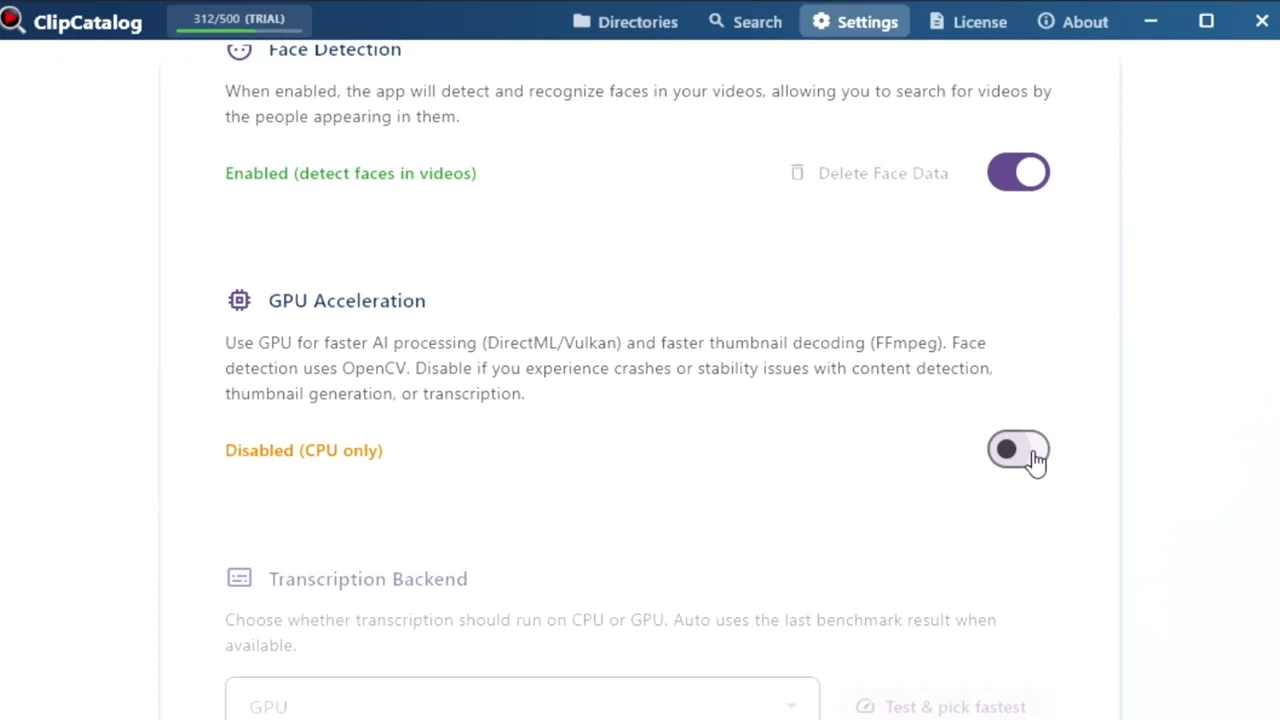
ClipCatalog GPU acceleration settings on Windows and processing queue.
GPU acceleration cuts initial processing time — especially when generating AI tags, transcripts, and face data simultaneously. Get to "searchable" faster.
No dedicated GPU? No problem. ClipCatalog detects your hardware and falls back to CPU automatically — no crashes, no configuration, no lost work.
Processing is built for large libraries. Pause and resume indexing at any time without losing progress — ideal for terabyte-scale archives.
How GPU acceleration works in ClipCatalog
ClipCatalog uses two GPU backends for different tasks — each one designed to work across GPU brands on Windows, with automatic fallback to CPU when needed.
AI tagging with the RAM++ model runs via DirectML — a low-level Windows API that works across NVIDIA, AMD, and Intel GPUs with DirectX 12 support.
Speech-to-text transcription (whisper.cpp) uses Vulkan for GPU acceleration. Vulkan is a cross-vendor standard supported by most modern GPUs.
The optional face pipeline accelerates SFace embeddings with DirectML when available, speeding up face analysis on compatible systems.
Built-in benchmark — find the fastest backend for your hardware
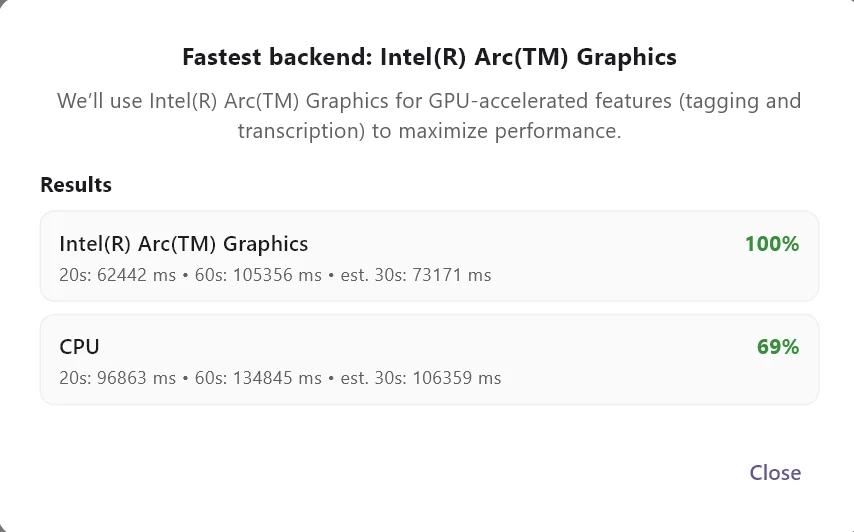
Not sure if GPU acceleration helps on your setup? ClipCatalog includes a one-click transcription benchmark that tests CPU and GPU on the same audio sample, reports the speed of each, and auto-selects the winner.
The benchmark runs a short transcription sample on both CPU and GPU, measures processing speed for each, and picks the winner. It takes under a minute and the result is cached permanently — you only need to run it once.
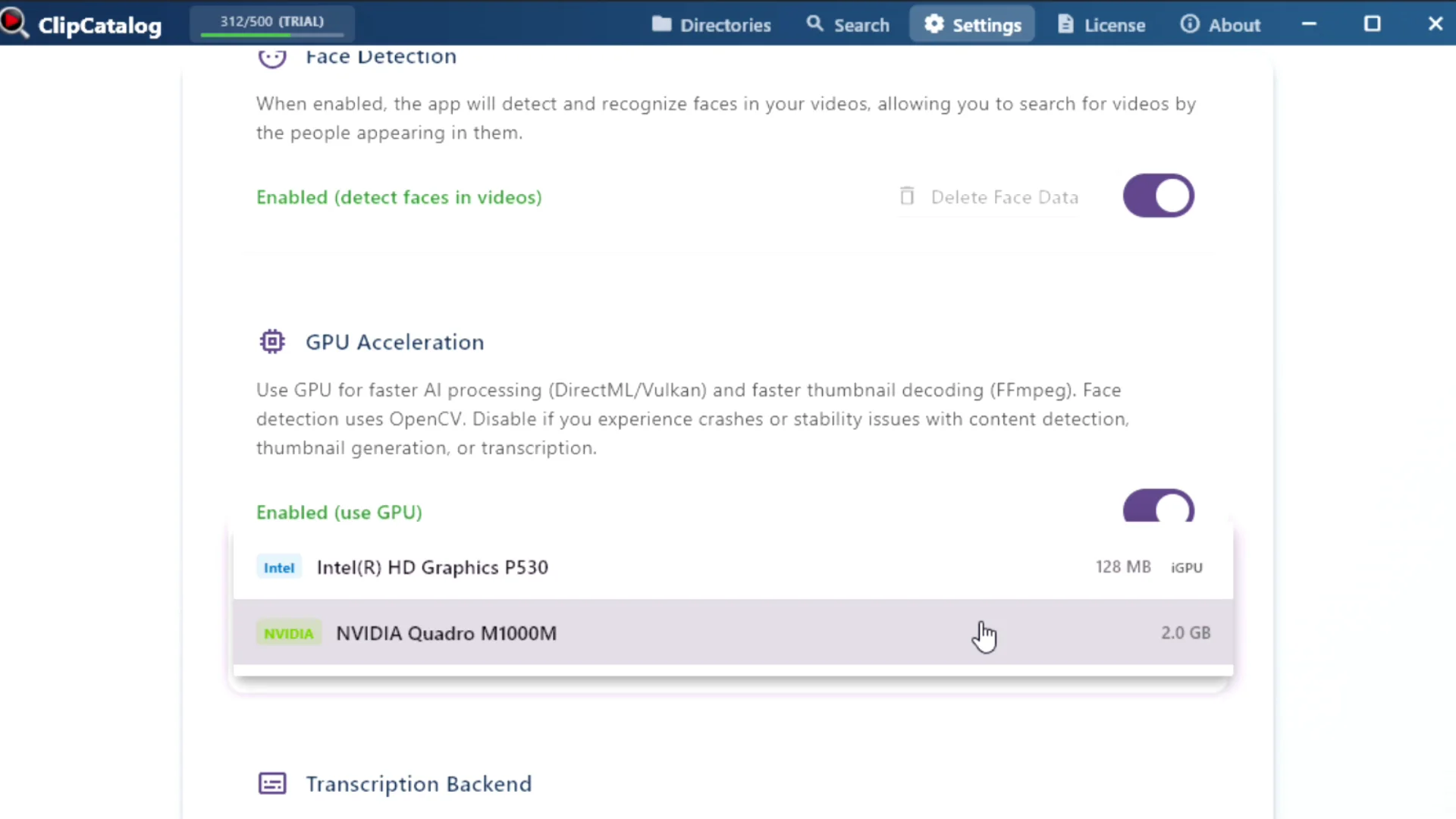
Pick a primary AI device once, and ClipCatalog uses it for every stage. Need more control? Expand the Advanced overrides to route AI tagging, face detection, or transcription to different GPUs — useful on mixed systems where each stage favors a different backend.
Choose which GPU to use
If your system has more than one GPU — a common setup with a dedicated card plus an integrated one — ClipCatalog lets you pick a primary AI device in Settings and, optionally, override it per stage (AI tagging, face detection, transcription).
See NVIDIA, AMD, or Intel at a glance
Know your GPU's memory before you start
Clearly marked integrated GPUs
Your GPU preference survives reboots
When GPU acceleration makes the biggest difference
The initial processing pass — generating tags, transcripts, and face data for every clip — is the most GPU-intensive step. After your library is indexed, search is instant regardless of GPU. Think of it as a one-time investment.
Import a full day's footage and let GPU acceleration crunch through it while you work on something else. For YouTubers and vloggers, this means searchable footage by the time you're ready to edit.
Filmmakers and editors with years of accumulated footage can process their archive in stages. Combined with stop-and-resume, GPU acceleration makes indexing large libraries practical instead of overnight.
When you enable AI tagging, transcription, and face recognition together, each pipeline stage benefits from GPU acceleration — so the total time savings compound.
What to expect
GPU acceleration doesn't change the quality of tags, transcripts, or face detection. The AI models produce identical results whether they run on GPU or CPU — the only difference is how fast they finish.
GPU acceleration means your own graphics card does the work — right on your desk. Your footage is never uploaded to a cloud service. Learn about local-first privacy →
If your GPU runs out of memory, hits a driver error, or isn't compatible, ClipCatalog falls back to CPU for that task and keeps processing. No crash, no lost progress, no manual intervention.
GPU acceleration works regardless of where your footage lives — internal drives, external SSDs, or archive volumes. Learn about external drive support →
Hardware compatibility
ClipCatalog's GPU acceleration is designed to work across hardware — no vendor lock-in.
| Feature | GPU backend | Requirement |
|---|---|---|
| AI tagging (RAM++) | DirectML | DirectX 12 compatible GPU |
| Transcription (whisper.cpp) | Vulkan | Vulkan-capable GPU + drivers |
| Face embeddings (SFace) | DirectML | DirectX 12 GPU (optional) |
| All features — CPU fallback | None | Any Windows 10/11 PC |
Most GPUs from the last several years support all three backends. If your drivers are outdated or incompatible, ClipCatalog falls back to CPU without crashing.
Frequently asked questions
No. GPU acceleration is optional. ClipCatalog detects your hardware and falls back to CPU when a capable GPU isn’t available. Everything works — processing just takes a bit longer on CPU.
AI tagging uses DirectML, which works across NVIDIA, AMD, and Intel GPUs on Windows with DirectX 12 support. Transcription uses Vulkan, which is supported by most modern GPUs. You don’t need a specific brand.
No. The AI models produce the same results whether they run on GPU or CPU. The difference is purely speed.
It depends on your hardware. ClipCatalog includes a built-in benchmark that tests both backends on your specific system. Dedicated GPUs typically process significantly faster — but the benchmark gives you a concrete answer for your setup.
No. All processing runs locally on your machine. GPU acceleration means your own graphics card does the work — nothing is uploaded anywhere.
ClipCatalog falls back to CPU automatically. There’s no crash and no lost progress — it logs the fallback and keeps going.
Yes. Settings shows a primary AI device dropdown and, under Advanced, per-stage overrides for AI tagging, face detection, and transcription. Your selections persist across reboots.
Integrated GPUs can provide some acceleration, but dedicated GPUs are faster. ClipCatalog’s auto mode uses benchmark results plus heuristics to pick the best option for your system.
Accelerates everything in ClipCatalog
GPU acceleration isn't a standalone feature — it speeds up the AI pipelines that power the rest of ClipCatalog.
Search clips by what's on screen — tags generated faster with DirectML GPU acceleration.
Find clips by what was said — Vulkan-accelerated transcription gets you there faster.
Find every appearance of a person — face analysis benefits from DirectML GPU acceleration.
Powerful filters across tags, transcripts, faces, and metadata — all powered by fast indexing.
Best for
- YouTubers & vloggers who want searchable footage fast after importing.
- Filmmakers & editors indexing terabytes of archive footage.
- Family & travel archivists processing years of personal video.
- Anyone with a capable GPU who wants to get to "searchable" as quickly as possible.
Try the benchmark yourself
The best way to see if GPU acceleration helps on your setup: install ClipCatalog, open Settings, and run the built-in transcription benchmark. After a few minutes you have concrete results.
Understanding GPU-accelerated video analysis
Whether you're evaluating GPU requirements, comparing backends, or wondering if your hardware is fast enough — here's what matters for local video indexing with AI.
AI models like RAM++ (AI tagging) and whisper.cpp (transcription) perform thousands of parallel matrix operations per frame or audio chunk. GPUs are built for exactly this kind of work — thousands of cores processing in parallel — which is why they can be significantly faster than CPUs for these tasks.
Many GPU-accelerated tools lock you into a single-vendor GPU stack, leaving users on other GPU brands out in the cold. ClipCatalog uses DirectML and Vulkan instead — cross-vendor standards that work with any modern GPU on Windows. No vendor-specific SDKs to install.
Integrated GPUs (like Intel Iris or AMD Radeon integrated) share system memory and have fewer cores than dedicated cards. They can still provide some acceleration, but dedicated GPUs will always be faster. ClipCatalog's auto mode detects iGPU-only systems and adjusts its recommendation accordingly.
GPU acceleration depends on up-to-date drivers. If your drivers are outdated or the GPU doesn't support the required API version, ClipCatalog doesn't crash — it logs the issue and continues on CPU. You can check your GPU status in Settings at any time.
Relevant comparisons
If you are evaluating this workflow against other tools, start with these side-by-side pages.
Try ClipCatalog free — up to 500 videos
No account required. Your footage stays on your computer.
License terms and installer availability