
ClipCatalog 0.20 to 0.23: people, places, phrases and your own tags
Since 0.19.0: rebuilt face recognition with a People screen, search by place, phrase search in transcripts, your own tags and a simpler first start.
The blog went quiet after the 0.19.0 post in May. The app did not: ClipCatalog has had four feature releases since then and is now at 0.23.1. Instead of nine separate posts, here is one round-up of what changed, grouped by what you do with the app. The complete list is in the changelog.
People: faces rebuilt, and a screen to manage them
Face recognition was rebuilt in 0.20.0. ClipCatalog now looks for faces in HD frames instead of small thumbnails, and it is much less likely to split one person into several entries.
The faces it finds are grouped into people across your whole library and every drive you add. No reference photo is needed: you name a person once, on the new People screen. There you decide who is who. Merge Suggestions point out groups that may be the same person, you can undo your recent merges in Merge history, and in Edit faces you can move faces to another person, remove faces that don’t belong, or mark a detection as Not a face.
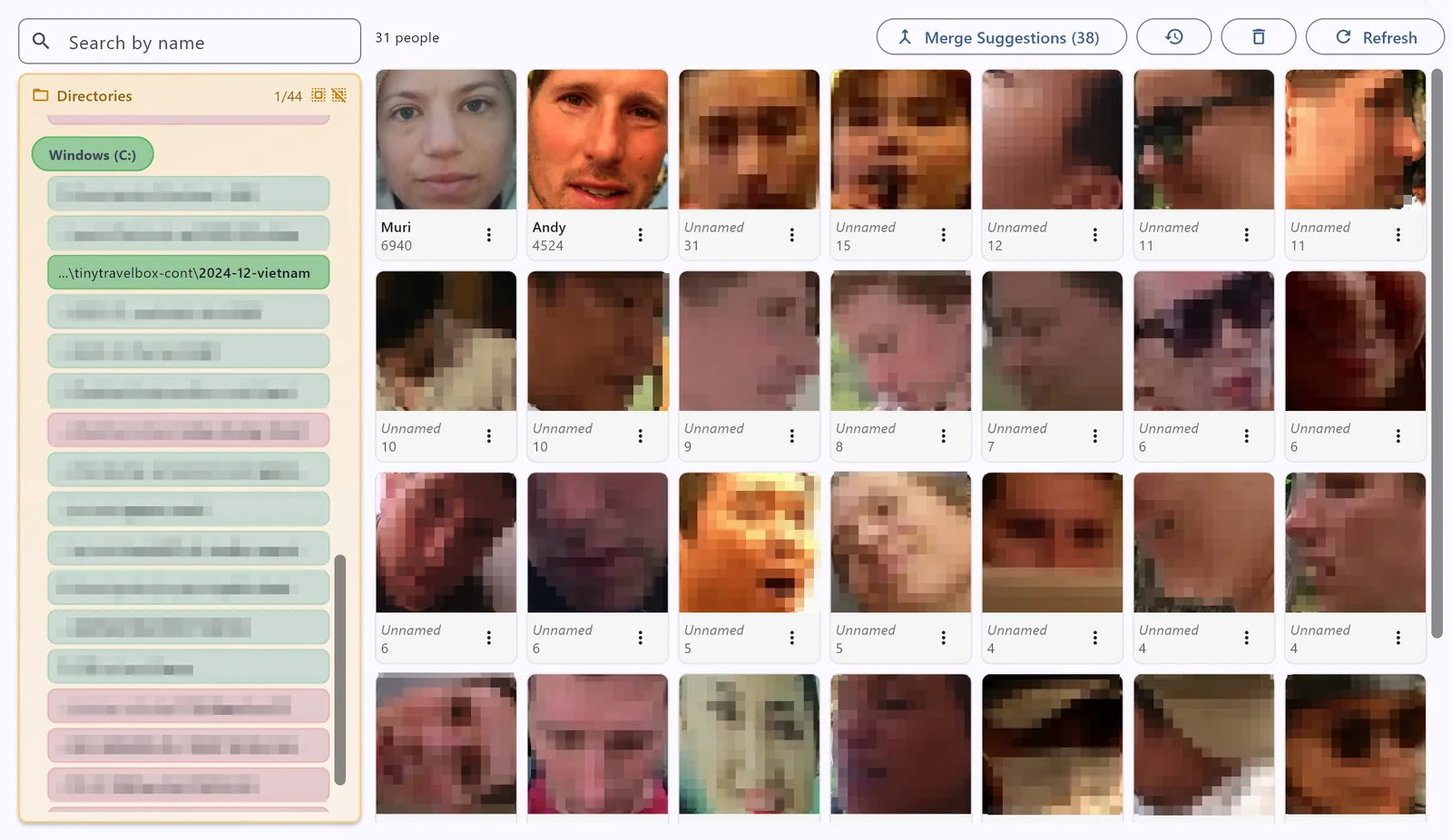
In Search, pick one person or several: All finds the videos where they appear together, Any the videos with at least one of them. People search keeps working while a drive is unplugged.
The People screen also tells you where face analysis stands (not analyzed yet, analyzing, no usable faces found, or faces found but not yet grouped), and Analyze now starts the folders that are still waiting. Since 0.23.1, its lists no longer reload while you work on them: when something has changed, the Refresh button turns blue, and one click shows the changes.
Face detection stays optional and runs entirely on your PC. More on how it works: face recognition.
Places: search by where a video was recorded
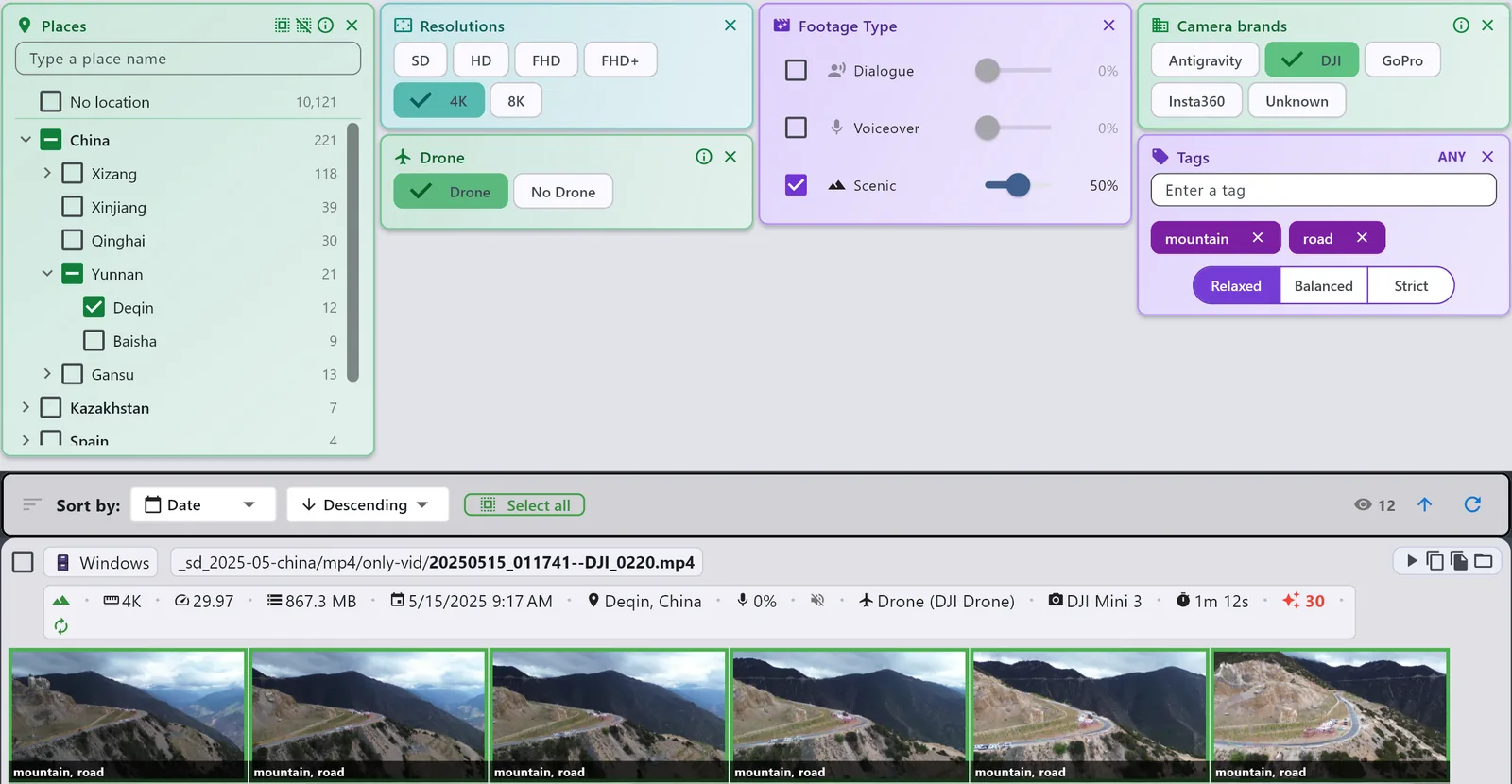
Many phones, drones and action cameras store a GPS position in the video file. Since 0.23.0, ClipCatalog turns that position into the country, region and nearest city or town, on your computer and without going online, and shows the place on each result.
The new Places filter lets you tick countries, regions and towns, leave out part of a place, or select everything except one country. Type to narrow the list, or click the place on a result to filter by it. If you would rather not use places at all, turn Places off in Settings.
Other details your camera stores got attention too:
- Recording times in local time. A recording date now shows the time on the clock where the video was recorded, not your computer’s time zone. ClipCatalog works it out from the GPS position, the file name or the camera’s time-zone setting. Hover over a date to see its time zone, or whether it could not be confirmed.
- Camera brands. A new filter finds all footage from one maker, and more videos show a camera name.
- Drone and 360° footage are detected more accurately, and thumbnails of 360° videos are square and upright instead of stretched or tilted.
- Long recordings that your camera split into several files become one video.
- HDR videos no longer get grey, washed-out thumbnails.
Spoken words: phrases, and more languages
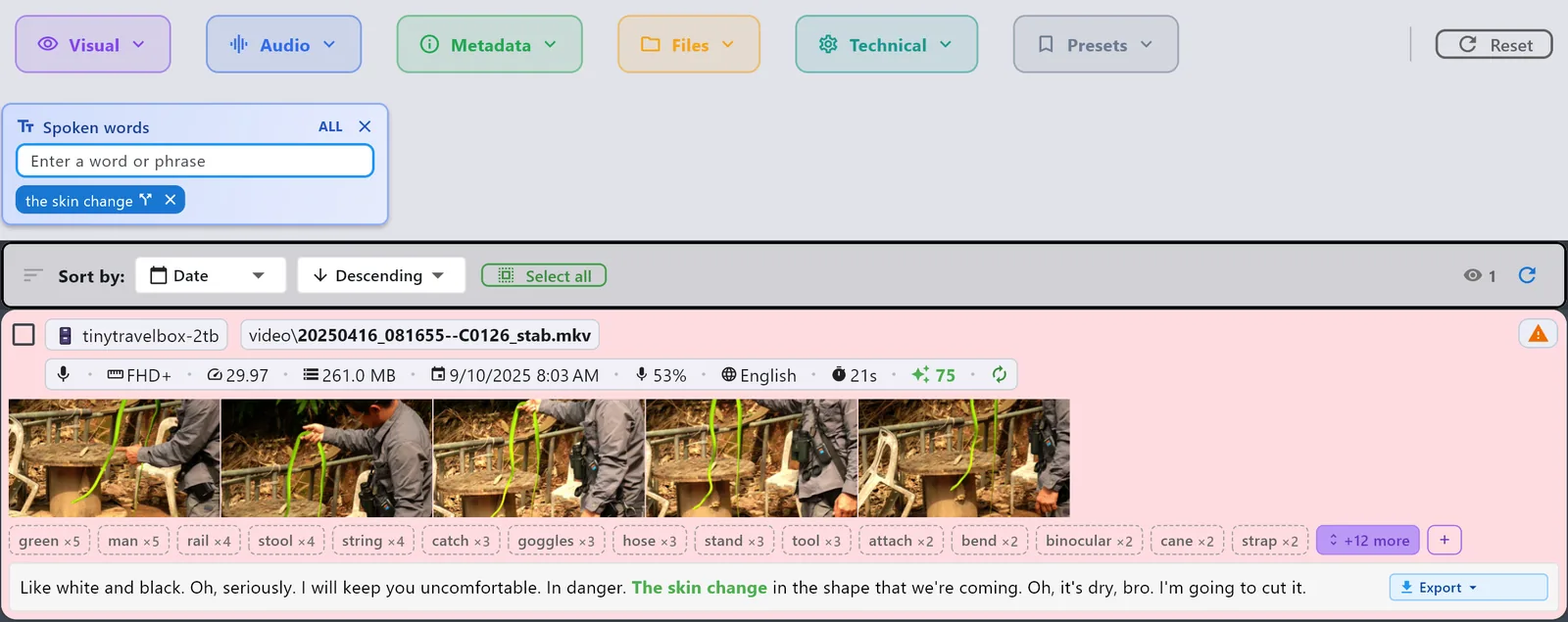
The Spoken words filter now finds phrases: a phrase matches only where its words were said together, in that order. It also finds words inside Chinese, Japanese and Thai sentences, which are written without spaces between words. Both work on the transcripts you already have, without transcribing anything again.
Suggestions complete the word you are typing and show how many videos each one finds, and the results highlight exactly the words that matched.
Transcripts themselves got better as well:
- Word timings now line up with the audio after pauses in speech. ClipCatalog offers once to transcribe the affected videos again, and you can fix any folder later from the Directories screen. If you exported subtitles before, export them again after the fix.
- Chinese, Japanese and Thai speech is no longer dropped as noise, and subtitles in these languages break into readable lines.
- Older processors that transcription used to crash on now work.
Your own tags
Since 0.20.0 you can add and edit tags on any video, one at a time or many at once. ClipCatalog remembers the tags you have used and suggests them as you type, and your tags are searchable alongside the AI tags. For the AI tags, a strictness setting lets you choose between fewer, surer matches and more matches, and the thumbnails show which tags matched.
Tags you added and people you named are also kept when ClipCatalog detects faces in a video again, or rebuilds a video because its files changed.
Doing more with your results
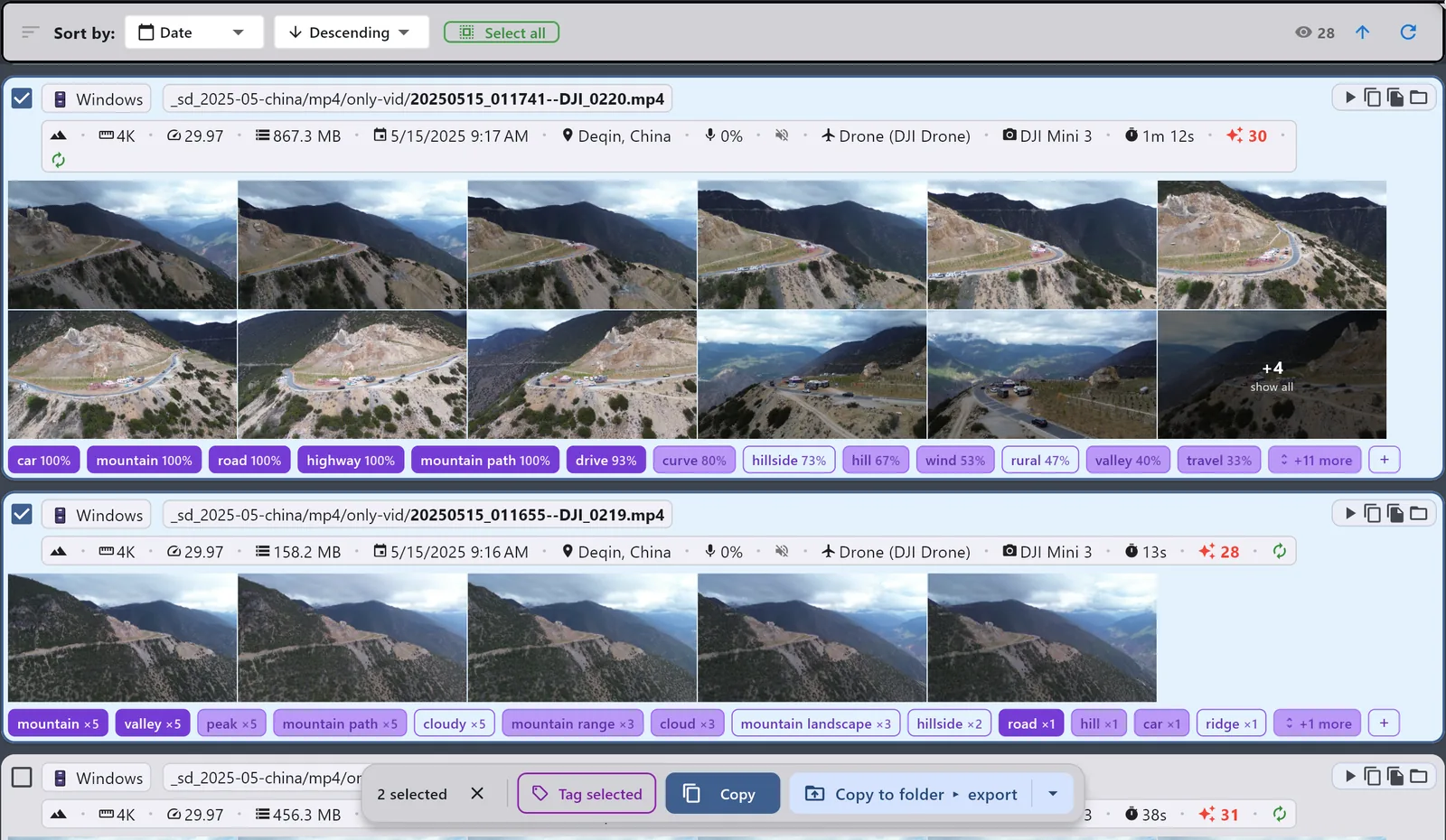
- Copy to folder copies any set of results to a folder you choose, with progress and a way to cancel.
- Selecting is easier: every result has a checkbox, Shift+click selects a range, Ctrl+A selects the loaded results, and Copy, Copy to folder and dragging act on the whole selection.
- Filter by folder from any result: click a folder name in its path to narrow the results to that folder, and click it again to remove the filter.
Getting started, and keeping up
- The first start gets going by itself. While ClipCatalog downloads its AI components, you can already choose the directories that hold your videos. It starts on them as soon as the download is done, and a banner tells you when your first videos are ready in Search.
- Add several directories at once: select them together after clicking Add Directory, or drag them onto the Directories screen.
- Automatic scans give each directory its own schedule, so new footage is indexed without you remembering to run a sync. They run while ClipCatalog is open.
- Network drives: syncing reads far less data, because reading camera details no longer loads short videos in full.
- High-resolution displays: ClipCatalog now looks sharp on them and adapts to a larger Windows text size.
A safer catalog
Your catalog holds everything ClipCatalog has worked out about your videos, plus the names and tags you added. Since 0.20.0 you can export your database key, back up on demand, and recover when the database is damaged, and ClipCatalog makes a safety copy before every database upgrade. Since 0.23.0, automatic backups catch up soon after ClipCatalog starts when the last one is too old, and restoring a backup first shows its date and what will be lost.
Get the update
If ClipCatalog is installed, the app offers the update itself. Coming from an older version, it downloads new AI models and tools once, and a welcome screen shows what it will process again. Otherwise, download the latest version. The free trial never expires and includes every feature for your first videos, so you can try all of this on your own footage first. The pricing page lists its limits.
The next post comes with 0.24.0. The RSS feed is the easiest way to get it.